

One of the scenarios for publishing a 1C database is using the Apache web server on a Windows system. This may be relevant if we trust this web server more than the built-in Windows IIS
. The described steps are applicable for any version of Windows from 7 to Server 2019. In my example, Windows Server 2012 R2, Apache 2.4, 1C 8.3 were used.
Apache web server installation
Publication of 1C database
In GUI
On the command line
Launch of the published database
Publishing multiple bases
Other instructions for 1C
Installing Apache 2.4.25 x64 for Windows and setting up publishing in 1C-Enterprise 8.3.
This article will tell you how to quickly and easily install a 64-bit Apache 2.4.25 web server, configure it, and publish a web service using 1C-Enterprise 8.3.
Since version 1C-Enterprise 8.3.8, we have been able to work with the Apache 2.4 server. Considering that support for Apache 2.2 ends in July 2017, the question is quite relevant.
Before starting the installation, make sure of the following:
- A 64-bit 1C-Enterprise 8.3 server is installed no lower than version 8.3.8.1861, since in earlier versions of the 8.3.8 platform, Apache 2.4 support is implemented only for a 32-bit server. However, in the article itself, version 8.3.9.2170, which is current at the time of writing, will be used to demonstrate the installation.
- Appropriate client version installed.
- The installation of both the server and client parts includes a web server extension module.
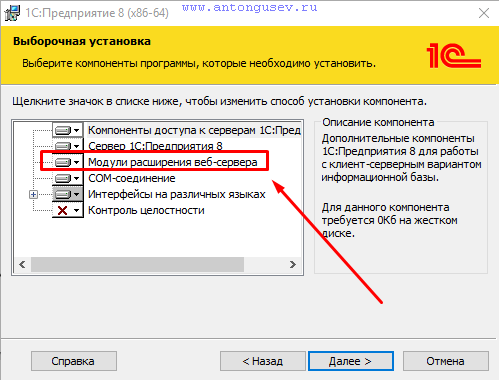
So, if the initial conditions are met, then the procedure will be as follows:
Read also
These instructions may also interest you:
1. Installing 1C + PostgreSQL server on Linux Ubuntu
2. MS SQL Server optimization for 1C:Enterprise
Installing Apache
Go to download page
Apache official website and download the required version of the program:

* in this example, one of the latest versions at the time of updating the instructions is downloaded — 2.4.46 for an x64 system with SSL support.
Unpack the downloaded archive into any directory, for example, C:\Apache24.
Open command prompt as administrator and go to folder bin
directory where apache was unpacked — in our case:
Start installing apache as a Windows service:
httpd.exe -k install
We should see:
* Our web server has been successfully installed.
When starting the service immediately after installation, an error may pop up. You just need to start Apache manually. To do this, open Windows services with the command:
* other options open services
Windows.
Find a service called Apache and start it:

Open the browser and go to http://localhost
— we should see the Apache welcome page.
Installation is complete and we can proceed to publish.
Publication of 1C database
We can publish the database using the graphical shell or the webinst utility from the command line. We will consider both options.
It should also be noted that the web server and the 1C server can be on different computers.
Graphical interface
We launch 1C and log in to the database in the configurator mode.
Go to menu items Administration
— Publishing on a web server
:

In the window that opens, enter a name for the database, select the Apache web server and specify the directory where the configuration files for publishing the database will be placed:

* base name and path can be anything, but it is desirable that they be the same as the name of the base itself.
Press the button Publish
— we should see the result of the command:

* if we get an error No web servers found
, you need to make sure that the Apache service is in the «Running» state.
The system will prompt us to restart the web server for the changes to take effect. However, this does not always work correctly with the Apache web server, so we simply refuse to restart:

Find the Apache service, right-click on it and select Restart
:

Command line
In the command line launched as an administrator, go to the directory with the 1C program, for example:
cd C:\Program Files\1cv8\8.3.18.1208\bin
* Please note that your version will be different. You need to look at the correct path and enter it.
Then enter the command:
a) file version:
webinst —publish -apache24 -wsdir Base -dir «c:\apache\htdocs\Base» -connstr «File=»»D:\Bases\Base»»;» -confpath «C:\Apache24\conf\httpd.conf
b) 1C server:
webinst —publish -apache24 -wsdir Base -dir «c:\apache\htdocs\Base» -connstr «Srvr=192.168.0.10;Ref=Base;» -confpath «C:\Apache24\conf\httpd.conf
- apache24 —
the version of our web server and the type of the server itself. - wsdir —
the name of the publication for the database. - dir —
directory for storing publication files. - connstr —
way to the base. If the database is stored in a file, write the path to it. If a 1C server is used, then we write its address and the name of the base. - confpath —
Path to the Apache configuration file.
We should see:
net stop Apache2.4 && net start Apache2.4
Launch
Multiple bases
If we need to publish several databases on one web server, then we simply repeat the steps:
- We go to the desired 1C database under the configurator.
- Go to the base publishing window.
- Enter the data required for publication.
- Restart Apache.
- Checking the work.
