- Upgrade or Install PHP 8. 2 on Debian running Apache2
- 1. Updating Debian as root
- 2. Add SURY PHP PPA Repository
- 3. Installing PHP 8.2 on Debian
- 4. Install Important Modules for PHP 8.2 on Debian
- 5. Making PHP 8.2 module for Apache available
- Check the current PHP version
- Show current PHP configuration
- Включить PHP 8.1 в качестве версии по умолчанию
- Включить PHP 7.4 в качестве версии по умолчанию
- Навигация по записям
- Launch script with specific PHP cli
- Using alternatives
- Add a comment
- Comments (newest first)
- Interactive switching mode
- Manual Switching
- From PHP 5.6 => PHP 7.1
- From PHP 7.1 => PHP 5.6
- Навигация по записям
Upgrade or Install PHP 8. 2 on Debian running Apache2
This tutorial shows how to install or upgrade PHP 8.2 quick and easy for Apache web server running on Debian 9 or Debian 10 and Debian 11. PHP is the widely used server scripting language for dynamic and interactive websites and content management systems.
5 steps to perform PHP 8.2 for Apache2 on Debian.
1. Updating Debian as root
$ su -
$ apt update
$ apt upgrade -y && reboot
2. Add SURY PHP PPA Repository
SURY is a third-party repository that offers current PHP versions for Debian GNU/Linux, which is added as root.
$ apt -y install lsb-release apt-transport-https ca-certificates
$ wget -O /etc/apt/trusted.gpg.d/php.gpg https://packages.sury.org/php/apt.gpg
$ echo "deb https://packages.sury.org/php/ $(lsb_release -sc) main" | tee /etc/apt/sources.list.d/php.list
3. Installing PHP 8.2 on Debian
$ apt update
$ apt -y install php8.2
$ update-alternatives --set php /usr/bin/php8.2
4. Install Important Modules for PHP 8.2 on Debian
$ apt -y install php8.2-cli php8.2-curl php8.2-gd php8.2-intl php8.2-mbstring php8.2-mysql php8.2-opcache php8.2-readline php8.2-xml php8.2-xsl php8.2-zip php8.2-bz25. Making PHP 8.2 module for Apache available
$ apt -y install libapache2-mod-php8.2
$ systemctl reload apache2
Finish! the installation is done. If you want to know which installed PHP version and modules are actually available, the next section shows.
Check the current PHP version
$ php -v
PHP 8.2.3 (cli) (built: Feb 14 2023 16:53:07) (NTS)
Copyright (c) The PHP Group
Zend Engine v4.2.3, Copyright (c) Zend Technologies with Zend OPcache v8.2.3, Copyright (c), by Zend Technologies
Show current PHP configuration
<?php
phpinfo();
?>
Save the file as phpinfo.php in the “/html” directory. Then open the newly created .php-file in a web browser.
http://my-domain/phpinfo.php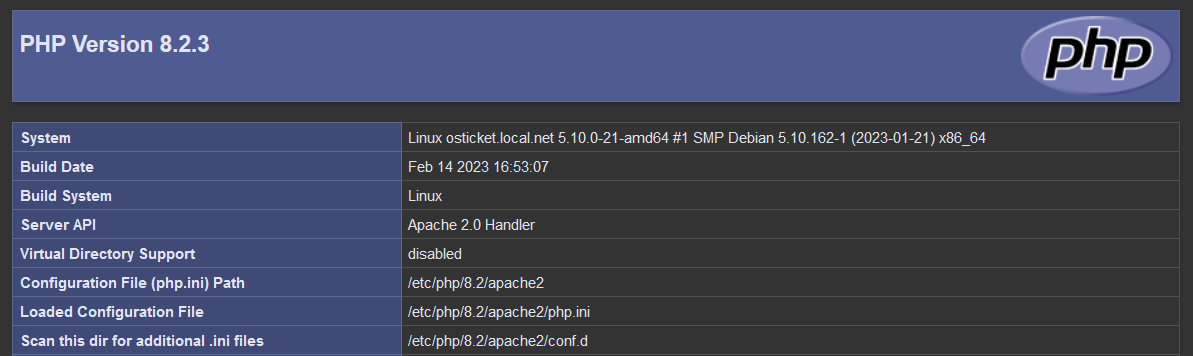
The system-wide PHP settings can be found under the path /etc/php, for modification using Apache 2 edit the php.ini file.
$ vi /etc/php/8.2/apache2/php.iniIf you do not see the installed php version, may the apache php module need to change to the desired version, run the apache helper command in the terminal, replace the version you have instead, like here php.7.4 in this example.
$ a2dismod php7.4
$ a2enmod php8.2
$ systemctl restart apache2
Verify the running php module with view the phpinfo.php from the web browser.
The PHP modules available for Apache 2 can find in the Apache web server path under /etc/apache2/mods-available
$ ll /etc/apache2/mods-available/php*
-rw-r--r-- 1 root root 855 Jul 5 2020 /etc/apache2/mods-available/php7.3.conf
-rw-r--r-- 1 root root 102 Jul 5 2020 /etc/apache2/mods-available/php7.3.load
-rw-r--r-- 1 root root 855 Dec 20 22:32 /etc/apache2/mods-available/php7.4.conf
-rw-r--r-- 1 root root 102 Dec 20 22:32 /etc/apache2/mods-available/php7.4.load
-rw-r--r-- 1 root root 855 Dec 20 22:32 /etc/apache2/mods-available/php8.2.conf
-rw-r--r-- 1 root root 101 Dec 20 22:32 /etc/apache2/mods-available/php8.2.load
Disable an Apache 2 module with a2dismod, use a2enmod to enable. The apt info command provides information about module information.
$ apt info libapache2-mod-php8.2В вашей системе, если вы установили несколько версий PHP (например, PHP 8.1, 8.0, 7.4, 7.3, 7.2, 7.1 и 5.6), только одна работает как PHP версия в Apache2 по умолчанию. Однако, если для текущей задачи вам нужно использовать специфическую версию PHP, не нужно удалять все прочие версии. Вы можете просто переключить версию PHP на используемую по умолчанию в Apache.
Допустим, вы установили PHP 8.1, PHP 7.4 и PHP 5.6 в нашу систему Debian. Вы можете использовать ту же инструкцию для других версий PHP, соответственно изменив команды.
Включить PHP 8.1 в качестве версии по умолчанию
Выполните следующую команду, чтобы отключить модуль Apache для других версий PHP.
sudo a2dismod php7.4 php5.6Теперь включите модуль PHP 8.1 и перезапустите Apache2.
sudo a2enmod php8.1
sudo service apache2 restart
Включить PHP 7.4 в качестве версии по умолчанию
Чтоб модуль PHP 7.4 заработал как активная PHP версия в Apache2, можно сделать это, отключив модули для всех других установленных версий PHP.
Выполните следующие команды, чтобы отключить для Apache другие версии PHP.
sudo a2dismod php8.1 php5.6Теперь включите модуль PHP 7.4 и перезапустите Apache2.
sudo a2enmod php7.4
sudo service apache2 restart
Разработчики PHP больше не поддерживают PHP 5.6 и настоятельно рекомендуют перейти на более позднюю версию PHP, например 7.4 или 8.1. Но вы все же можете установить и использовать PHP 5.6 в своей системе Debian, если вашему приложению требуется такая старая версия.
Выполните следующие команды, чтобы отключить другие версии PHP, такие как php 8.1, php7.4 и т. д.
sudo a2dismod php7.4 php8.1 php8.0Теперь включите модуль PHP 5.6.
sudo a2enmod php5.6
sudo service apache2 restart
По инструкции вы можете изменить версию PHP по умолчанию, не удаляя другие версии.
Thanks to version-named paths of PHP configurations, libraries and binaries, different PHP versions can be installed in parallel on the same server. This is a great help when switching a PHP web application to a new PHP version. By using different PHP-FPM versions running in parallel, the Apache (or Nginx) config can simply be adjusted for the PHP-FPM listener or socket.
While switching the PHP versions of web-applications is a simple one line changer in the web server (vhost) config, there are other scripts on the command line, where the switch isn’t so simple.
Looking at the WordPress command line () for example. The command is a PHP script, which is executed on the command line:
The script uses the php command from the system. can tell us which PHP version this is:
But if (or any other PHP script) should be used on a web application running on a different PHP version, this might cause problems.
Launch script with specific PHP cli
Instead of running directly (which will lookup the «default» PHP version on the system), launch the script with a specific PHP CLI instead:
On the plus side, this gives you a flexible way to use different PHP versions on PHP scripts. But the chances that you forget the specific PHP version prior to the PHP script are pretty high.
Using alternatives
Alternatives is a system setting available in most Linux distributions and allow to change the path to a binary or script. This also allows to manually (compile and) install newer software and run the new version alongside the version from the package repositories (see Install/upgrade cmake on Ubuntu using alternatives for an example).
On this system, the current path of /usr/bin/php points to /etc/alternatives/php:
This is typically proof that alternatives are configured. By using the command (on Debian-based distributions), the current configuration can be checked:
The current configuration lets /usr/bin/php point to /usr/bin/php8.1.
To change the PHP version in alternatives, we can install a new alternative with a higher priority (99):
This change is immediately working and can be tested on a PHP script, such as :
Add a comment
Show form to leave a comment
Comments (newest first)
No comments yet.
So I have Gentoo box with three PHP versions installed (nevermind the reasons):
/usr/bin/php->/usr/lib64/php5.4/bin/php/usr/bin/php5.5->/usr/lib64/php5.5/bin/php/usr/bin/php5.6->/usr/lib64/php5.4/bin/php
I want to install Laravel framework using composer:
$ composer create-project laravel/laravel --prefer-distThis however throws an error because Laravel requires PHP > 5.5.9 and the default php interpreter is 5.4.
So I issue another command:
$ /usr/bin/php5.6 /usr/bin/composer create-project laravel/laravel --prefer-distThis takes me one step further, but then some post-install commands from Laravel’s composer.json comes into play, and installation crashes.
This is due to the fact, that composer.json commands look like this:
"post-install-cmd": [ "php artisan clear-compiled", "php artisan optimize"
],
As you can see, the «default» interpreter is used again!
#!/usr/bin/env phpThis is nice feature as PHP interpreter can be found under different locations on different systems.
Unfortunatelly, in this case env command returns path to the first executable it finds in $PATH environmental variable.
How could I possibly alter current session environment or what kind of trick to perform so for the execution of whole Laravel installation process php command would invoke /usr/bin/php5.6 instead of /usr/bin/php?
I don’t want to change $PATH variable or modify files like composer, composer.json or Laravel’s CLI utility artisan.
I have installed php 5.6 and and php 7.1 on my Ubuntu 16.04
I know with Apache as my web server, I can do
a2enmod php5.6 #to enable php5
a2enmod php7.1 #to enable php7
When I disable php7.1 in Apache modules and enable php 5.6, Apache recognizes the change and uses php 5.6 interpreter as expected.
But when I run internal php web server from the commandline:
php -S localhost:8888php handles requests using php 7. So how do I switch between php 5.6 and php 7.1 in the command line ?

8 silver badges21 bronze badges
asked Mar 6, 2017 at 6:55

Interactive switching mode
sudo update-alternatives --config php
sudo update-alternatives --config phar
sudo update-alternatives --config phar.phar
Manual Switching
From PHP 5.6 => PHP 7.1
Default PHP 5.6 is set on your system and you need to switch to PHP 7.1.
$ sudo a2dismod php5.6
$ sudo a2enmod php7.1
$ sudo service apache2 restart
$ sudo update-alternatives --set php /usr/bin/php7.1
$ sudo update-alternatives --set phar /usr/bin/phar7.1
$ sudo update-alternatives --set phar.phar /usr/bin/phar.phar7.1From PHP 7.1 => PHP 5.6
Default PHP 7.1 is set on your system and you need to switch to PHP 5.6.
$ sudo a2dismod php7.1
$ sudo a2enmod php5.6
$ sudo service apache2 restart
$ sudo update-alternatives --set php /usr/bin/php5.6
17 gold badges106 silver badges178 bronze badges
answered Mar 6, 2017 at 7:03

Stevie G
1 gold badge10 silver badges16 bronze badges
$ sudo update-alternatives --config phpshould work for all ubuntu versions after 16.04 (18.04 and 20.04)
This is what you should see as a response
There are 4 choices for the alternative php (providing /usr/bin/php). Selection Path Priority Status
------------------------------------------------------------
* 0 /usr/bin/php7.2 72 auto mode 1 /usr/bin/php5.6 56 manual mode 2 /usr/bin/php7.0 70 manual mode 3 /usr/bin/php7.1 71 manual mode 4 /usr/bin/php7.2 72 manual mode
Press <enter> to keep the current choice[*], or type selection number:
Choose the appropriate version
answered Jan 19, 2018 at 8:28

2 gold badges30 silver badges26 bronze badges
in ubuntu 20.04 switching between PHP 8.0 and PHP 7.4 version:
DOWNGRADE PHP 8.0 to PHP 7.4
sudo a2dismod php8.0
sudo a2enmod php7.4
sudo service apache2 restart
sudo update-alternatives --config php
sudo update-alternatives --config phar
sudo update-alternatives --config phar.phar
sudo service apache2 restart
UPGRADE PHP 7.4 to PHP 8.0
sudo a2dismod php7.4
sudo a2enmod php8.0
sudo service apache2 restart
sudo update-alternatives --config php
sudo update-alternatives --config phar
sudo update-alternatives --config phar.phar
sudo service apache2 restart
check the changes:
- run
php -vin the console and you will got:
- add a PHP file in your runnable local environment like
/var/www/html/path by addingphpinfo();and get PHP info in the browser (in top of the page the version of PHP is available to see)
answered Mar 22, 2021 at 10:03

Pejman Kheyri
8 gold badges32 silver badges38 bronze badges
To list all available versions and choose from them :
sudo update-alternatives --config phpOr do manually
sudo a2dismod php7.1 // disable
sudo a2enmod php5.6 // enable
answered May 30, 2018 at 11:25

Kamal Kumar
2 gold badges19 silver badges15 bronze badges
I think you should try this
From php5.6 to php7.1
sudo a2dismod php5.6
sudo a2enmod php7.1
sudo service apache2 restart
sudo update-alternatives --set php /usr/bin/php7.1
sudo update-alternatives --set phar /usr/bin/phar7.1
sudo update-alternatives --set phar.phar /usr/bin/phar.phar7.1
From php7.1 to php5.6
sudo a2dismod php7.1
sudo a2enmod php5.6
sudo service apache2 restart
sudo update-alternatives --set php /usr/bin/php5.6
sudo update-alternatives --set phar /usr/bin/phar5.6
sudo update-alternatives --set phar.phar /usr/bin/phar.phar5.6
answered Sep 19, 2017 at 9:38
answered Mar 6, 2017 at 7:02

7 silver badges15 bronze badges
You can create a script to switch from versions: sudo nano switch_php
then type this:
#!/bin/sh
#!/bin/bash
echo "Switching to PHP$1..."
case $1 in "7") sudo a2dismod php5.6 sudo a2enmod php7.0 sudo service apache2 restart sudo ln -sfn /usr/bin/php7.0 /etc/alternatives/php;; "5.6") sudo a2dismod php7.0 sudo a2enmod php5.6 sudo service apache2 restart sudo ln -sfn /usr/bin/php5.6 /etc/alternatives/php;;
esac
echo "Current version: $( php -v | head -n 1 | cut -c-7 )"
exit and save
make it executable: sudo chmod +x switch_php
That’s it you can now easily switch form PHP7 to PHP 5.6!

22 silver badges38 bronze badges
answered Jul 22, 2017 at 18:38

1 silver badge3 bronze badges
May be you might have an old PHP version like PHP 5.6 in your system and you installed PHP 7.2 too so thats multiple PHP in your machine. There are some applications which were developed when older PHP 5.6 was latest version, they are still live and you working on those applications, You might be working on Laravel simultaneously but Laravel requires PHP 7+ to get started. Getting the picture ?
In that case you can switch between the PHP versions to suit your requirements.
Switch From PHP 5.6 => PHP 7.2
sudo a2dismod php5.6
sudo a2enmod php7.2
sudo service apache2 restart
sudo update-alternatives --set php /usr/bin/php7.2
sudo update-alternatives --set phar /usr/bin/phar7.2
sudo update-alternatives --set phar.phar /usr/bin/phar.phar7.2
sudo update-alternatives --set phpize /usr/bin/phpize7.2
sudo update-alternatives --set php-config /usr/bin/php-config7.2And vice-versa, Switch From PHP 7.2 => PHP 5.6
sudo a2dismod php7.2
sudo a2enmod php5.6
sudo service apache2 restart
sudo update-alternatives --set php /usr/bin/php5.6
sudo update-alternatives --set phar /usr/bin/phar5.6
sudo update-alternatives --set phar.phar /usr/bin/phar.phar5.6
sudo update-alternatives --set phpize /usr/bin/phpize5.6
sudo update-alternatives --set php-config /usr/bin/php-config5.6
answered Aug 18, 2019 at 6:30

this worked for me:-
sudo update-alternatives --set php /usr/bin/php7.4just change the PHP version to whichever version you need I have changed it to php7.4
answered Apr 29, 2021 at 1:13

4 silver badges13 bronze badges
You can use below command lines to switch between two PHP version.
I want to switch PHP Version from 7.1 to 7.2 we can use below command
sudo a2dismod php7.1 && sudo update-alternatives --set php /usr/bin/php7.2 && sudo a2enmod php7.2 && sudo service apache2 restarta2dismod is use to disable the current php version and a2enmod is use to enable the version
answered Feb 14, 2019 at 5:12

Type given command in your terminal..
- sudo a2dismod php5
- sudo service apache2 restart
- sudo a2enmod php5.6
- sudo service apache2 restart
It will upgrade Php version, same thing reverse if you want version downgrade, you can see it by PHP_INFO();
answered Jan 24, 2018 at 13:02

Switch from PHP 5.6 to PHP 7.2 using:
sudo a2dismod php5.6 && sudo a2enmod php7.2 && sudo service apache2 restartSwitch from PHP 7.2 to PHP 5.6 using:
sudo a2dismod php7.2 && sudo a2enmod php5.6 && sudo service apache2 restart
6 gold badges24 silver badges35 bronze badges
answered Mar 7, 2018 at 17:48

I made a bash script to switch between different PHP versions on Ubuntu.
Hope it helps someone.
Here’s the script:
(save it in /usr/local/bin/sphp.sh, don’t forget to add +x flag with command: sudo chmod +x /usr/local/bin/sphp.sh)
#!/bin/bash
# Usage
if [ $# -ne 1 ]; then echo "Usage: sphp [phpversion]" echo "Example: sphp 7.2" exit 1
fi
currentversion="`php -r \"error_reporting(0); echo str_replace('.', '', substr(phpversion(), 0, 3));\"`"
newversion="$1"
majorOld=${currentversion:0:1}
minorOld=${currentversion:1:1}
majorNew=${newversion:0:1}
minorNew=${newversion:2:1}
if [ $? -eq 0 ]; then if [ "${newversion}" == "${currentversion}" ]; then echo "PHP version [${newversion}] is already being used" exit 1 fi echo "PHP version [$newversion] found" echo "Switching from [php${currentversion}] to [php${newversion}] ... " printf "a2dismod php$majorOld.$minorOld ... " sudo a2dismod "php${majorOld}.${minorOld}" printf "[OK] and " printf "a2enmod php${newversion} ... " sudo a2enmod "php${majorNew}.${minorNew}" printf "[OK]\n" printf "update-alternatives ... " sudo update-alternatives --set php "/usr/bin/php${majorNew}.${minorNew}" printf "[OK]\n" sudo service apache2 restart printf "[OK] apache2 restarted\n"
else echo "PHP version $majorNew.$minorNew was not found." echo "Try \`sudo apt install php@${newversion}\` first." exit 1
fi
echo "DONE!"
answered Feb 10, 2020 at 22:42

There are two methods to switch php versions on the command line ubuntu.
Run each command one by one and input the number of the php version you want to change.
sudo update-alternatives --config php
sudo update-alternatives --config phar
sudo update-alternatives --config phar.phar
sudo service apache2 restart
If you want to change PHP 5.6 to 7.4 just run the below codes.
sudo a2dismod php5.6
sudo a2enmod php7.4
sudo service apache2 restart
If you want to change from PHP 7.4 to 5.6 run the below codes.
sudo a2dismod php7.4
sudo a2enmod php5.6
sudo service apache2 restart
answered Feb 10 at 15:02
You could use these open source PHP Switch Scripts, which were designed specifically for use in Ubuntu 16.04 LTS.
./switch-to-php-5.6.sh
./switch-to-php-7.0.sh
./switch-to-php-7.1.sh
./switch-to-php-7.2.sh
answered Mar 15, 2018 at 17:03

1 gold badge5 silver badges11 bronze badges
From PHP 5.6 => PHP 7.1
$ sudo a2dismod php5.6
$ sudo a2enmod php7.1
for old linux versions
$ sudo service apache2 restart$ systemctl restart apache2answered Sep 24, 2018 at 14:42

When installing laravel on Ubuntu 18.04, be default PHP 7.3.0RC3 install selected, but laravel and symfony will not install properly complaining about missin php-xml and php-zip, even though they are installed. You need to switch to php 7.1, using the instructions above or,
sudo update-alternatives --set php /usr/bin/php7.1now, running laravel new blog, will proceed correctly
answered Oct 22, 2018 at 20:36
7 silver badges9 bronze badges
i.e : your current version is : current_version = 7.3 , and you want to change it to : new_version = 7.2
1) sudo a2dismod php(current_version)
2) sudo a2enmod php(new_version)
3) sudo update-alternatives --config php (here you need to select php version number)
4) restart apache through : sudo /etc/init.d/apache2 restart OR sudo service apache2 restart
answered Jan 9, 2020 at 12:51

1 silver badge5 bronze badges
Let’s start from beginning.
I assume that you would prefer to use php-fpm instead of Apache module.
First install apache:
sudo apt-get update
sudo apt-get install apache2
Next install multiple PHP:
Debian 9:
Install PHP 7:
sudo apt-get install php7.0-cli php7.0-fpm php-pear libapache2-mod-fastcgisudo apt-get install apt-transport-https
sudo curl https://packages.sury.org/php/apt.gpg | apt-key add -
sudo echo 'deb https://packages.sury.org/php/ stretch main' > /etc/apt/sources.list.d/deb.sury.org.list
sudo apt-get updateInstall PHP 5:
sudo apt-get install php5.6-cli php5.6-fpmDebian 8:
Install PHP 5:
sudo apt-get install php5 php5-fpm php-pear libapache2-mod-fastcgideb http://packages.dotdeb.org jessie all
deb-src http://packages.dotdeb.org jessie allInstall GPG key:
wget https://www.dotdeb.org/dotdeb.gpg
sudo apt-key add dotdeb.gpg
sudo apt-get update
Install PHP 7:
sudo apt-get install php7.0 php7.0-fpmNext switch from prefork and enable necessary modules:
For Debian 8:
a2dismod php5 mpm_preforkFor Debian 9:
a2dismod php7 mpm_preforkNext for both:
a2enmod actions fastcgi alias proxy_fcgi mpm_worker
systemctl restart apache2
<IfModule !mod_fastcgi.c> AddHandler fcgid-script fcg fcgi fpl
</IfModule>
<IfModule mod_fastcgi.c> <Directory /usr/lib/cgi-bin> Require all granted </Directory>
</IfModule>Now create document root folders for websites:
mkdir -p /var/www/example.com/public_html
mkdir -p /var/www/test.com/public_html
sudo useradd example --home-dir /var/www/example.com
sudo useradd test --home-dir /var/www/test.comsudo chown -R example.example /var/www/example.com
sudo chown -R test.test /var/www/test.comFor example website example.com will use PHP 5 and website test.com will use PHP 7.
Create configuration files for websites:
Website on PHP 5:
touch /etc/apache2/sites-available/example.com.conf
ln -s /etc/apache2/sites-available/example.com.conf /etc/apache2/sites-enabled/example.com.conf
cat /etc/apache2/sites-available/example.com.conf
<VirtualHost *:80> ServerAdmin webmaster@localhost ServerName example.com ServerAlias www.example.com DocumentRoot /var/www/example.com/public_html ErrorLog ${APACHE_LOG_DIR}/error.log CustomLog ${APACHE_LOG_DIR}/access.log combined <IfModule mod_fastcgi.c> AddType application/x-httpd-fastphp5 .php Action application/x-httpd-fastphp5 /php5-fcgi Alias /php5-fcgi /usr/lib/cgi-bin/php5-fcgi-example.com FastCgiExternalServer /usr/lib/cgi-bin/php5-fcgi-example.com -socket /var/run/php5-fpm-example.com.sock -pass-header Authorization </IfModule>
</VirtualHost>
Website on PHP 7:
touch /etc/apache2/sites-available/test.com.conf
ln -s /etc/apache2/sites-available/test.com.conf /etc/apache2/sites-enabled/test.com.conf
cat /etc/apache2/sites-available/test.com.conf
<VirtualHost *:80> ServerAdmin webmaster@localhost ServerName test.com ServerAlias www.test.com DocumentRoot /var/www/test.com/public_html ErrorLog ${APACHE_LOG_DIR}/error.log CustomLog ${APACHE_LOG_DIR}/access.log combined <IfModule mod_fastcgi.c> AddHandler php7-fcgi .php Action php7-fcgi /php7-fcgi virtual Alias /php7-fcgi /usr/lib/cgi-bin/php7-fcgi-test.com FastCgiExternalServer /usr/lib/cgi-bin/php7-fcgi-test.com -socket /var/run/php/php7.0-fpm-test.com.sock -pass-header Authorization </IfModule>
</VirtualHost>
cat /etc/php5/fpm/pool.d/example.com.conf
[example.com]
user = example
group = example
listen = /var/run/php5-fpm-example.com.sock
listen.owner = www-data
listen.group = www-data
php_admin_value[disable_functions] = exec,passthru,shell_exec,system
php_admin_flag[allow_url_fopen] = off
pm = dynamic
pm.max_children = 5
pm.start_servers = 2
pm.min_spare_servers = 1
pm.max_spare_servers = 3
chdir = /Website on PHP 7:
cat /etc/php/7.0/fpm/pool.d/test.com.conf
[test.com]
user = test
group = test
listen = /var/run/php/php7.0-fpm-test.com.sock
listen.owner = www-data
listen.group = www-data
php_admin_value[disable_functions] = exec,passthru,shell_exec,system
php_admin_flag[allow_url_fopen] = off
pm = dynamic
pm.max_children = 5
pm.start_servers = 2
pm.min_spare_servers = 1
pm.max_spare_servers = 3
chdir = /
Restart apache and php-fpm services:
sudo systemctl restart apache2 php5-fpm php7.0-fpmНедавно на старом Debian сервере обновлял GLPI с версии 9.3 до 9.5. В процессе апгрейда выяснилось, что надо обновлять и версию PHP, иначе GLPI ругался:
PHP >= 7.2.0 required
lsb_release -a
No LSB modules are available.
Distributor ID: Debian
Description: Debian GNU/Linux 9.13 (stretch)
Release: 9.13
Codename: stretch
Далее, я пробежался по следующей инструкции How To Install PHP 7.4 / 7.3 / 7.2 / 7.1 on Debian 10 / Debian 9. Все команды выполняю от root
apt install -y curl wget gnupg2 ca-certificates lsb-release apt-transport-https
Добавляем репозитарий и ключи
wget https://packages.sury.org/php/apt.gpg
apt-key add apt.gpg
echo deb https://packages.sury.org/php/ $(lsb_release -sc) main | sudo tee /etc/apt/sources.list.d/php7.list
Обновляем список пакетов
apt update
Устанавливаем PHP версии 7.4, последнюю на данный момент
apt install -y php7.4 php7.4-cli php7.4-common
Устанавливаем эту версию по умолчанию
update-alternatives --set php /usr/bin/php7.4 php -v
Перегружаем Apache, хотя этого не требовалось
service apache2 reload
Однако, GLPI всё ещё продолжал ругаться, что ему нужен PHP 7.2 и старше, а значит надо включить эту версию в Apache и отключить старую. Поэтому в конце обязательно надо сделать:
a2enmod php7.4
a2dismod php7.0
service apache2 reload
Ну и вот вся история по установке PHP 7.4. Отдельно для GLPI потребуются многие расширения php, поэтому можете установить их разом с помощью
apt install libapache2-mod-php7.4 php7.4-bcmath php7.4-bz2 php7.4-cli php7.4-common php7.4-curl php7.4-gd php7.4-intl php7.4-json php7.4-ldap php7.4-mbstring php7.4-mysql php7.4-opcache php7.4-readline php7.4-xml php7.4-xmlrpc php7.4-zip
Ну и в конце подчистить с помощью
apt autoremove
Если помог, оставляйте ваши спасибо в комментариях 🙂
Отблагдарить автора статьи также можно переводом, +100 вам в карму!
apt debian glpi linux php php7.4 ubuntu