
Вот и дождался я выхода новой версии RouterOS после настройки у себя CAPsMAN что бы проверить работу автоматического обновления CAP’s.
Освоить MikroTik Вы можете с помощью онлайн-куса «Настройка оборудования MikroTik». Курс содержит все темы, которые изучаются на официальном курсе MTCNA. Автор курса – официальный тренер MikroTik. Подходит и тем, кто уже давно работает с микротиками, и тем, кто еще их не держал в руках. В курс входит 162 видеоурока, 45 лабораторных работ, вопросы для самопроверки и конспект.
- Предварительная подготовка
- Проверяем обновление на вновь подключаемой точке
- Автоматическое обновление firmware
- Overview
- CAPsMAN v2
- Requirements
- Limitations
- CAP to CAPsMAN Connection
- CAP Auto Locking to CAPsMAN
- Auto Certificates
- CAP Configuration
- CAPsMAN Configuration Concepts
- CAPsMAN Global Configuration
- CAPsMAN AAA Configuration
- Example
- Radio Provisioning
- Interface Configuration
- Master Configuration Profiles
- Channel Groups
- Datapath Configuration
- Local Forwarding Mode
- Manager Forwarding Mode
- Access List
- Registration Table
- Examples
- Basic configuration with master and slave interface
- Configuration with certificates
- Fast and easy configuration
- Manual certificates and issuing with SCEP
- Введение
- Что такое capsman v2
- Настройка контроллера wifi сети
Предварительная подготовка
Подопытные: CAPsMAN – RB760iGS (hEX S), CAP – RBcAPGi-5acD2nD (cAP ac) и RBD52G-5HacD2HnD-TC (hAP ac²)
CAPsMAN и CAP’s настроены как написано в “MikroTik: настройка домашней и гостевой Wi-Fi сетей с использованием CAPsMAN без VLAN“
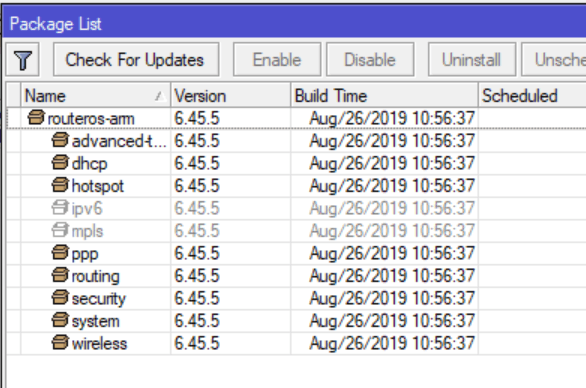
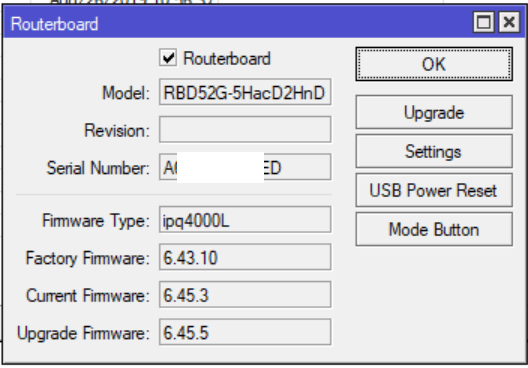
На момент перед началом настроек на CAPsMAN версия RouterOS 6.45.5, на CAP 6.45.3. cAP ac включен, hAP ac^2 выключен.
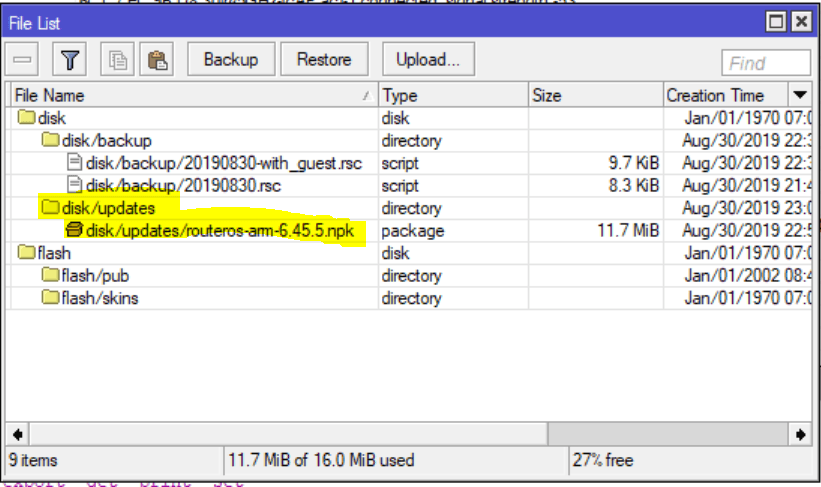
На CAPsMAN примонтирована флешка /disk и на ней создана папка updates, в папку помещена прошивка routeros-arm-6.45.5.npk.
В настройках CAPsMAN – Manager указываем путь где будут лежать обновления и выбираем Upgrade Policy.
Здесь три варианта:
- none – не требовать обновления
- require same version – требовать обязательное обновление до версии установленной на CAPsMAN, если CAP не обновить то он работать не будет
- suggest same version – предложить обновиться до версии RouterOS установленной на CAPsMAN, если не обновиться то CAP продолжит работу на старой версии
Выберем последний вариант
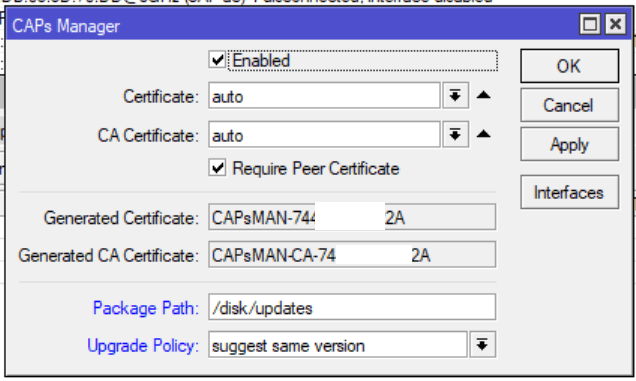
/caps-man manager set package-path=/disk/updates upgrade-policy=suggest-same-versionКак только нажали Apply включенная точка сразу начала обновляться и ушла в перезагрузку. После загрузки видим обновлённую версию RouterOS на CAP.
Проверяем обновление на вновь подключаемой точке
Теперь включим выключенный hAP ac^2
При включении новая точка так же обновилась без проблем, о чём нам рапортует лог-файл на CAPsMAN

А вот с обновление firmware не всё так радужно, ни в первом ни во втором случае firmware не обновилось
Автоматическое обновление firmware
Для автоматического обновления firmware в планировщике на CAPs создадим следующее событие:
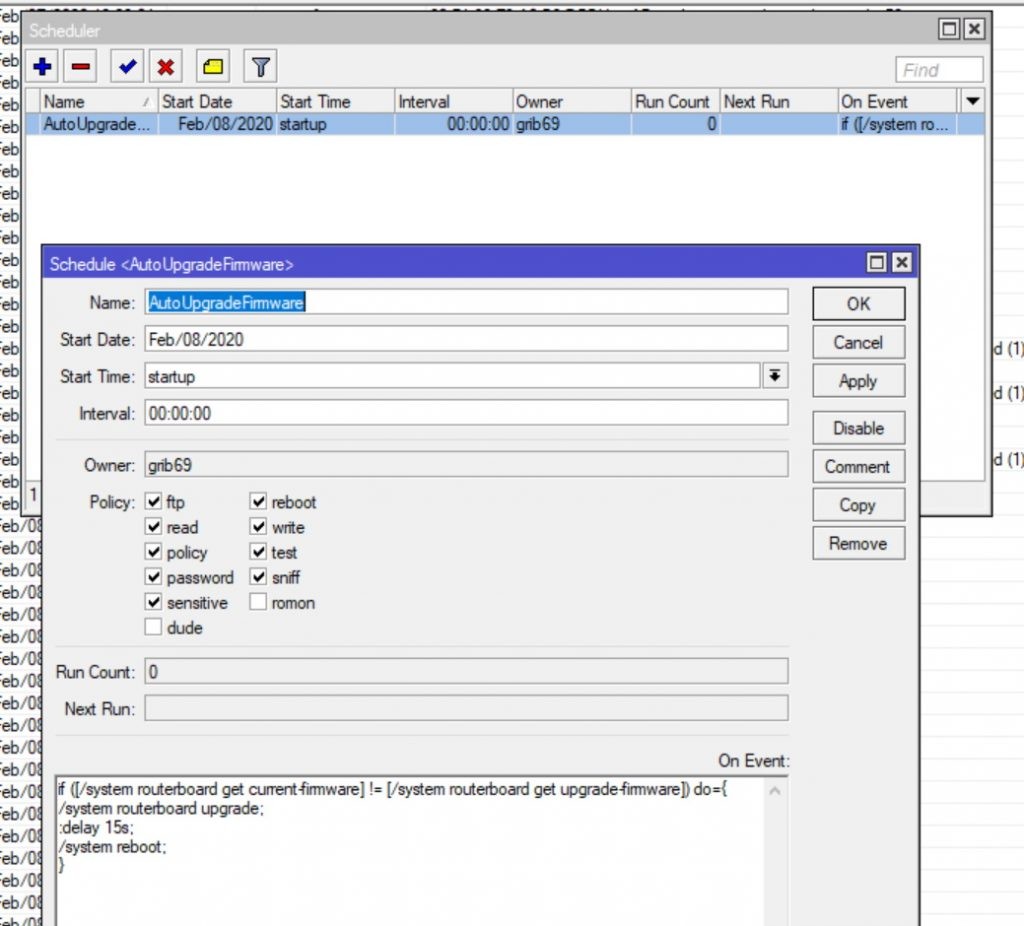
/system scheduler
add name=AutoUpgradeFirmware on-event="if ([/system routerboard get current-firmware] != [/system routerboard get upgrade-firmware]) do={\r\ \n/system routerboard upgrade\r\ \n:delay 15s\r\ \n/system reboot\r\ \n}\r\ \n" policy=ftp,reboot,read,write,policy,test,password,sniff,sensitive start-time=startup
Данный скрипт после загрузки маршрутизатора сверяет версии current и upgrade firmware и в случае их несовпадения запускает upgrade с последующей перезагрузкой.
Если такой скрипт разместить в корне каждого CAPs например под именем upgradefirmware.auto.rsc то он выполнится автоматически, но как автоматизировать его рассылку на все CAP’s, особенно если они без IP, я ещё не придумал.
Если у Вас есть решение то поделитесь им пожалуйста в комментариях.
08.02.2020 Изменил скрипт обновления firmware, плюс поменял его запуск, теперь вместо запуска по расписанию он выполняется сразу после запуска маршрутизатора. (Спасибо PaulS за подсказку в комментариях)
Освоить MikroTik Вы можете с помощью онлайн-куса «Настройка оборудования MikroTik». Курс содержит все темы, которые изучаются на официальном курсе MTCNA. Автор курса – официальный тренер MikroTik. Подходит и тем, кто уже давно работает с микротиками, и тем, кто еще их не держал в руках. В курс входит 162 видеоурока, 45 лабораторных работ, вопросы для самопроверки и конспект.
Оцените данную запись
Overview
Controlled Access Point system Manager (CAPsMAN) allows centralization of wireless network management and if necessary, data processing. When using the CAPsMAN feature, the network will consist of a number of ‘Controlled Access Points’ (CAP) that provide wireless connectivity and a ‘system Manager’ (CAPsMAN) that manages the configuration of the APs, it also takes care of client authentication and optionally, data forwarding.
When a CAP is controlled by CAPsMAN it only requires the minimum configuration required to allow it to establish connection with CAPsMAN. Functions that were conventionally executed by an AP (like access control, client authentication) are now executed by CAPsMAN. The CAP device now only has to provide the wireless link layer encryption/decryption.
Depending on configuration, data is either forwarded to CAPsMAN for centralized processing (default) or forwarded locally at the CAP itself (#Local_Forwarding_Mode).
- RADIUS MAC authentication
- WPA/WPA2 security
- TBA
MISSING CAPsMAN features
- Nstreme AP support
- Nv2 AP support
- TBA
CAPsMAN v2
NOTE: CAPsMAN v2 is NOT compatible with current CAPsMAN v1 (CAPsMAN v1 CAP devices will not be able to connect to CAPsMAN v2 and CAPsMAN v2 CAP devices will not be able to connect to CAPsMAN v1). It means that both CAPsMAN and CAP devices should have wireless-cm2 package enabled/installed in order to make CAPsMAN v2 system to work.
If you want to try out the CAPsMAN v2 upgrade all the CAPs and the CAPsMAN to latest RouterOS version and enable/install wireless-cm2 package.
CAPsMAN v2 features:
- CAPsMAN automatic upgrade of all CAP clients (configurable)
- improved CAP CAPsMAN data connection protocol
- added «Name Format» and «Name Prefix» setting for Provision rules
- improved logging entries when client roams between the CAPs
- added L2 Path MTU discovery
Upgrade options from v1 to v2:
Option1: Install a new temporary CAPsMAN v2 router in same network where the current CAPsMAN router is and start enabling/upgrading wireless-cm2 package on the CAPs. All CAPs with the v2 will connect to the new temporary CAPsMAN v2 router. After every CAP is upgraded to v2, upgrade your current CAPsMAN to v2 and then turn off the temporary CAPsMAN v2 router.
Option2: Upgrade your CAPs and then CAPsMAN to v2 at the same time. In this case you could have little more downtime unless you schedule all the CAPs to reboot/install at the same time.
Requirements
CAPsMAN works on any RouterOS device from v6.11, wireless interfaces are not required (since it manages the wireless interfaces of CAPs)
CAPsMAN v2 is working starting from RouterOS v6.22rc7.
CAPsMAN v1 is discontinued starting from 6.37.
CAP device should have at least Level4 RouterOS license
Limitations
unlimited CAPs (access points) supported by CAPsMAN
32 Radios per CAP
32 Virtual interfaces per master radio interface
CAP to CAPsMAN Connection
For the CAPsMAN system to function and provide wireless connectivity, a CAP must establish management connection with CAPsMAN. A management connection can be established using MAC or IP layer protocols and is secured using ‘DTLS’.
A CAP can also pass the client data connection to the Manager, but the data connection is not secured. If this is deemed necessary, then other means of data security needs to be used, e.g. IPSec or encrypted tunnels.
CAP to CAPsMAN connection can be established using 2 transport protocols (via Layer 2 and Layer3).
- MAC layer connection features:
- no IP configuration necessary on CAP
- CAP and CAPsMAN must be on the same Layer 2 segment — either physical or virtual (by means of L2 tunnels)
- IP layer (UDP) connection features:
- can traverse NAT if necessary
- CAP must be able to reach CAPsMAN using IP protocol
- if the CAP is not on the same L2 segment as CAPsMAN, it must be provisioned with the CAPsMAN IP address, because IP multicast based discovery does not work over Layer3
In order to establish connection with CAPsMAN, CAP executes a discovery process. During discovery, CAP attempts to contact CAPsMAN and builds an available CAPsMANs list. CAP attempts to contact to an available CAPsMAN using:
- configured list of Manager IP addresses
- list of CAPsMAN IP addresses obtained from DHCP server
- broadcasting on configured interfaces using both — IP and MAC layer protocols.
- if caps-man-names parameter specifies allowed manager names (/system identity of CAPsMAN), CAP will prefer the CAPsMAN that is earlier in the list, if list is empty it will connect to any available Manager
- suitable Manager with MAC layer connectivity is preferred to Manager with IP connectivity
- no certificates on CAP and CAPsMAN — no authentication
- only Manager is configured with certificate — CAP checks CAPsMAN certificate, but does not fail if it does not have appropriate trusted CA certificate, CAPsMAN must be configured with require-peer-certificate=no in order to establish connection with CAP that does not possess certificate
- CAP and CAPsMAN are configured with certificates — mutual authentication
After DTLS connection is established, CAP can optionally check CommonName field of certificate provided by CAPsMAN. caps-man-certificate-common-names parameter contains list of allowed CommonName values. If this list is not empty, CAPsMAN must be configured with certificate. If this list is empty, CAP does not check CommonName field.
If the CAPsMAN or CAP gets disconnected from the network, the loss of connection between CAP and CAPsMAN will be detected in approximately 10-20 seconds.
CAP Auto Locking to CAPsMAN
CAP can be configured to automatically lock to particular CAPsMAN. Locking is implemented by recording certificate CommonName of CAPsMAN that CAP is locked to and checking this CommonName for all subsequent connections. As this feature is implemented using certificate CommonName, use of certificates is mandatory for locking to work.
Once CAP connects to suitable CAPsMAN and locks to it, it is reflected like this:
Note that CAP can be manually «locked» to CAPsMAN by setting caps-man-certificate-common-names.
Auto Certificates
To simplify CAPsMAN and CAP configuration when certificates are required (e.g. for automatic locking feature), CAPsMAN can be configured to generate necessary certificates automatically and CAP can be configured to request certificate from CAPsMAN.
Automatic certificates do not provide full public key infrastructure and are provided for simple setups. If more complicated PKI is necessary — supporting proper certificate validity periods, multiple-level CA certificates, certificate renewal — other means must be used, such as manual certificate distribution or SCEP.
- certificate — this is CAPsMAN certificate, private key must be available for this certificate. If set to none, CAPsMAN will operate in no-certificate mode and none of certificate requiring features will work. If set to auto, CAPsMAN will attempt to issue certificate to itself using CA certificate (see ca-certificate description). Note that CommonName automatically issued certificate will be «CAPsMAN- » and validity period for will be the same as for CA certificate.
- ca-certificate — this is CA certificate that CAPsMAN will use when issuing certificate for itself if necessary (see certificate description) and when signing certificate requests from CAPs. If set to none, CAPsMAN will not be able to issue certificate to itself or sign certificate requests from CAPs. If set to auto, CAPsMAN will generate self-signed CA certificate to use as CA certificate. CommonName for this certificate will take form «CAPsMAN-CA- » and validity period will be from jan/01/1970 until jan/18/2038.
When CAPsMAN will auto-generate certificates, this will be reflected like this:
CAP can be configured to request certificate from CAPsMAN. In order for this to work, CAP must be configured with setting certificate=request and CAPsMAN must have CA certificate available (either specified in ca-certificate setting or auto-generated).
CAP will initially generate private key and certificate request with CommonName of form «CAP- «. When CAP will establish connection with CAPsMAN, CAP will request CAPsMAN to sign its certificate request. If this will succeed, CAPsMAN will send CA certificate and newly issued certificate to CAP. CAP will import these certificates in its certificate store:
On subsequent connections to CAPsMAN, CAP will use generated certificate.
Note: CAPsMAN uses UDP port 5246 for manager traffic and UDP port 5247 for data traffic
CAP Configuration
Sub-menu: /interface wireless cap
When an AP is configured to be controlled by CAPsMAN, configuration of the managed wireless interfaces on the AP is ignored (exceptions: antenna-gain,antenna-mode). Instead, AP accepts configuration for the managed interfaces from CAPsMAN.
Note: The CAP wireless interfaces that are managed by CAPsMAN and whose traffic is being forwarded to CAPsMAN (ie. they are not in local forwarding mode), are shown as disabled, with the note Managed by CAPsMAN. Those interfaces that are in local forwarding mode (traffic is locally managed by CAP, and only management is done by CAPsMAN) are not shown disabled, but the note Managed by CAPsMAN is shown
CAPsMAN Configuration Concepts
Each wireless interface on a CAP that is under CAPsMAN control appears as a virtual interface on the CAPsMAN. This provides maximum flexibility in data forwarding control using regular RouterOS features, such as routing, bridging, firewall, etc.
Many wireless interface settings are able to be grouped together into named groups (‘profiles’) that simplifies the reuse of configuration — for example, common configuration settings can be configured in a ‘configuration profile’ and multiple interfaces can then refer to that profile. At the same time any profile setting can be overridden directly in an interface configuration for maximum flexibility.
- channel — channel related settings, such as frequency and width
- datapath — data forwarding related settings, such as bridge to which particular interface should be automatically added as port
- security — security related settings, such as allowed authentication types or passphrase
- configuration — main wireless settings group, includes settings such as SSID, and additionally binds together other setting groups — that is, configuration profile can refer to channel, security, etc. named setting groups. Additionally any setting can be overridden directly in configuration profile.
Interface settings bind together all setting groups, but additionally any setting can be overridden directly in interface settings.
- interface passphrase
- interface->security passphrase
- interface->configuration passphrase
- interface->configuration->security passphrase
There are 2 types of interfaces on CAPsMAN — «master» and «slave». The master interface holds the configuration for an actual wireless interface (radio), while a slave interface links to the master interface and is intended to hold the configuration for a Virtual-AP (multiple SSID support). There are settings that are meaningful only for master interface, i.e. mainly hardware setup related settings such as radio channel settings. Note that in order for a radio to accept clients, it’s master interface needs to be enabled. Slave interfaces will become operational only if enabled and the master interface is enabled.
Interfaces on CAPsMAN can be static or dynamic. Static interfaces are stored in RouterOS configuration and will persist across reboots. Dynamic interfaces exist only while a particular CAP is connected to CAPsMAN.
CAPsMAN Global Configuration
Sub-menu: /caps-man manager
Settings to control CAPsMAN functionality are found in /caps-man manager menu:
CAPsMAN AAA Configuration
Sub-menu: /caps-man aaa
Settings to configure CAPsMAN AAA functionality are found in /caps-man aaa menu:
Example
Assuming that rest of the settings are already configured and only the «Security» part have been left.
Radius authentication with one server
1. Create CAPsMAN security configuration
2. Configure Radius server client
3. Assign the configuration to your master profile (or directly to CAP itself)
Radius authentication with different radius servers for each SSID
1. Create CAPsMAN security configuration
2. Configure AAA settings
3. Configure Radius server clients
4. Assign the configuration to your master profile (or directly to CAP itself)
Now everyone connecting to CAP’s with ssid=SSID1 will have their radius authentication requests sent to x.x.x.x and everyone connecting to CAP’s with ssid=SSID2 will have their radius authentication requests sent to y.y.y.y
Radio Provisioning
Sub-menu: /caps-man provisioning
- if CAP provided a certificate, the identifier is set to the Common Name field in the certificate
- otherwise identifier is based on Base-MAC provided by CAP in the form: ‘[XX:XX:XX:XX:XX:XX]’.
When the DTLS connection with CAP is successfully established (which means that CAP identifier is known and valid), CAPsMAN makes sure there is no stale connection with CAP using the same identifier. Currently connected CAPs are listed in /caps-man remote-cap menu:
CAPsMAN distinguishes between actual wireless interfaces (radios) based on their builtin MAC address (radio-mac). This implies that it is impossible to manage two radios with the same MAC address on one CAPsMAN. Radios currently managed by CAPsMAN (provided by connected CAPs) are listed in /caps-man radio menu:
When CAP connects, CAPsMAN at first tries to bind each CAP radio to CAPsMAN master interface based on radio-mac. If an appropriate interface is found, radio gets set up using master interface configuration and configuration of slave interfaces that refer to particular master interface. At this moment interfaces (both master and slaves) are considered bound to radio and radio is considered provisioned.
If no matching master interface for radio is found, CAPsMAN executes ‘provisioning rules’. Provisioning rules is an ordered list of rules that contain settings that specify which radio to match and settings that specify what action to take if a radio matches.
Provisioning rules for matching radios are configured in /caps-man provisioning menu:
Note: If no rule matches radio, then implicit default rule with action create-enabled and no configurations set is executed.
To get the active provisioning matchers:
Interface Configuration
Sub-menu: /caps-man interface
CAPsMAN interfaces are managed in /caps-man interface menu:
Master Configuration Profiles
Sub-menu: /caps-man configuration
Configuration profiles permit pre-defined ‘top level’ master settings to be applied to CAP radios being provisioned.
Configuration Profiles are configured in /caps-man configuration menu:
Channel Groups
Sub-menu: /caps-man channels
Channel group settings allows for the configuration of lists of radio channel related settings, such as radio band, frequency, Tx Power extension channel and width.
Channel group settings are configured in the Channels profile menu /caps-man channels
Datapath Configuration
Sub-menu: /caps-man datapath
Datapath settings control data forwarding related aspects. On CAPsMAN datapath settings are configured in datapath profile menu /caps-man datapath or directly in a configuration profile or interface menu as settings with datapath. prefix.
There are 2 major forwarding modes:
- local forwarding mode, where CAP is locally forwarding data to and from wireless interface
- manager forwarding mode, where CAP sends to CAPsMAN all data received over wireless and only sends out the wireless data received from CAPsMAN. In this mode even client-to-client forwarding is controlled and performed by CAPsMAN.
Forwarding mode is configured on a per-interface basis — so if one CAP provides 2 radio interfaces, one can be configured to operate in local forwarding mode and the other in manager forwarding mode. The same applies to Virtual-AP interfaces — each can have different forwarding mode from master interface or other Virtual-AP interfaces.
Most of the datapath settings are used only when in manager forwarding mode, because in local forwarding mode CAPsMAN does not have control over data forwarding.
- bridge — bridge interface to add interface to, as a bridge port, when enabled
- bridge-cost — bridge port cost to use when adding as bridge port
- bridge-horizon — bridge horizon to use when adding as bridge port
- client-to-client-forwarding — controls if client-to-client forwarding between wireless clients connected to interface should be allowed, in local forwarding mode this function is performed by CAP, otherwise it is performed by CAPsMAN.
- local-forwarding — controls forwarding mode
- openflow-switch — OpenFlow switch to add interface to, as port when enabled
- vlan-id — VLAN ID to assign to interface if vlan-mode enables use of VLAN tagging
- vlan-mode — VLAN tagging mode specifies if VLAN tag should be assigned to interface (causes all received data to get tagged with VLAN tag and allows interface to only send out data tagged with given tag)
Local Forwarding Mode
In this mode wireless interface on CAP behaves as a normal interface and takes part in normal data forwarding. Wireless interface will accept/pass data to networking stack on CAP. CAPsMAN will not participate in data forwarding and will not process any of data frames, it will only control interface configuration and client association process.
Wireless interface on CAP will change its configuration to ‘enabled’ and its state and some relevant parameters (e.g. mac-address, arp, mtu) will reflect that of the interface on CAPsMAN. Note that wireless related configuration will not reflect actual interface configuration as applied by CAPsMAN:
Virtual-AP interfaces in local forwarding mode will appear as enabled and dynamic Virtual-AP interfaces:
The fact that Virtual-AP interfaces are added as dynamic, somewhat limits static configuration possibilities on CAP for data forwarding, such as assigning addresses to Virtual-AP interface. This does not apply to master wireless interface.
To overcome this it is possible to use the static-virtual setting on the CAP which will create Static Virtual Interfaces instead of Dynamic and allows the possibility to assign IP configuration to those interfaces. MAC address is used to remember each static-interface when applying the configuration from the CAPsMAN. If two or more static interfaces will have the same MAC address the configuration could be applied in random order.
To facilitate data forwarding configuration, CAP can be configured with bridge to which interfaces are automatically added as ports when interfaces are enabled by CAPsMAN. This can be done in /interface wireless cap menu.
Manager Forwarding Mode
In this mode CAP sends all data received over wireless to CAPsMAN and only sends out over wireless, data received from CAPsMAN. CAPsMAN has full control over data forwarding including client-to-client forwarding. Wireless interface on CAP is disabled and does not participate in networking:
Virtual-AP interfaces are also created as ‘disabled’ and do not take part in data forwarding on CAP.
Access List
Sub-menu: /caps-man access-list
Access list on CAPsMAN is an ordered list of rules that is used to allow/deny clients to connect to any CAP under CAPsMAN control. When client attempts to connect to a CAP that is controlled by CAPsMAN, CAP forwards that request to CAPsMAN. As a part of registration process, CAPsMAN consults access list to determine if client should be allowed to connect. The default behaviour of the access list is to allow connection.
Access list rules are processed one by one until matching rule is found. Then the action in the matching rule is executed. If action specifies that client should be accepted, client is accepted, potentially overriding it’s default connection parameters with ones specified in access list rule.
Registration Table
Sub-menu: /caps-man registration-table
Registration table contains a list of clients that are connected to radios controlled by CAPsMAN and is available in /caps-man registration-table menu:
Examples
Basic configuration with master and slave interface
Create security profile for WPA2 PSK, without specifying passphrase:
Create configuration profile to be used by master interface
- specify WPA2 passphrase in configuration
- specify channel settings in configuration:
Create configuration profile to be used by virtual AP interface
- specify different WPA2 passphrase in configuration:
Create provisioning rule that matches any radio and creates dynamic interfaces using master-cfg and slave-cfg:
Now when AP connects and is provisioned 2 dynamic interfaces (one master and one slave) will get created:
Consider an AP, that does not support configured frequency connects and can not become operational:
We can override channel settings for this particular radio in interface settings, without affecting master-cfg profile:
Allow Specific MAC address range to match the Access-list, for example, match all the Apple devices:
Configuring DHCP Server Option 138 for setting the CAPsMAN address on the CAP boards
DHCP client this CAPsMAN IP will see in «/ip dhcp-client print detail»
Configuration with certificates
You would want to configure certificates in your CAPsMAN to use options as Require Peer Certificate and Lock To Caps Man. These options increase security and in some cases stability of your CAPsMAN network. CAPs won’t connect to CAPsMAN without a specific certificate and vice versa.
Fast and easy configuration
In CAPsMAN Manager menu set Certificate and CA Certificate to auto:
CAPsMAN device first will generate CA-Certificate and then it will generate Certificate which depends on CA-Certificate.
Set in CAP configuration to request certificate:
CAP will connect to CAPsMAN and request certificate. CAP will receive CA-Certificate form CAPsMAN and another certificate will be created for use on CAP.
On CAP device in CAP menu Requested Certificate is set:
Also, two certificates are gained and are seen in Certificate menu:
On CAPsMAN device in Certificate menu three certificates are created. CAPsMAN and CAPsMAN-CA certificates, as well as a certificate which is issued to CAP:
If you want to allow only CAPs with a valid certificate to connect to this CAPsMAN you can set Require Peer Certificate to yes on CAPsMAN device:
However, when you will want to add new CAP devices to your CAPsMAN network you will have to set this option to no and then back to yes after CAP has gained certificates. Every time you change this option CAPsMAN will drop all dynamic interfaces and CAPs will try to connect again.
If you want to lock CAP to specific CAPsMAN and be sure it won’t connect to other CAPsMANs you should set option Lock To CAPsMAN to yes. Additionally, you can specify CAPsMAN to lock to by setting CAPsMAN Certificate Common Names on CAP device:
Manual certificates and issuing with SCEP
With this example, you can create your own certificates for CAPsMAN and take control over issuing certificates to CAPs. This configuration can be useful in big, growing CAPsMAN networks. Many segments of this example can be done differently depending on your situation and needs. At this point, some knowledge about Certificates and their application can be useful.
In Certificate menu add certificate templates for CA certificate and CAPsMAN server certificate:
Now Sign the certifiace templates. First Sign the CA certificate and use CAPsMAN device IP as CA CRL Host:
Alternatively, previous two steps can be done with auto setting in Certificate and CA-Certificate option in CAPsMAN Manager menu, see the Fast and easy configuration.
Export CA certificate. You will have to Import it on CAP device. You can use Download -> Drag&Drop to CAP device, in this example fetch command is used later from CAP device. Using long passphrase is advisable — longer passphrase will take longer to crack if it gets into the wrong hands:
Create SCEP server which will be used to issue and grant certificates to CAP devices:
Set certificates in CAPsMAN Manager menu and set Require Peer Certificate to yes:
At this point, only CAPs with a valid certificate will be able to connect.
Download export of CA certificate from CAPsMAN device to CAP device. In this example fetch is used, however, there are multiple other ways:
Import CA certificate from CAPsMAN device in Certificate menu:
Add certificate template for CAP:
Ask CAPsMAN device to grant this certificate with a key using SCEP:
You will have to return to CAPsMAN device to grant key to this certificate.
In CAP menu set just created certificate:
Return to CAPsMAN device to grant a key to CAP certificate in Certificate Request menu:
Now CAP should be able to connect to CAPsMAN, see in CAPsMAN interfaces if it connects. In CAPsMAN device Certificate menu three certificates can be seen: CA, CAPsMAN, and the one which is issued to CAP:
In CAP devices Certificate menu two acquired certificates can be seen:
Сегодня рассмотрим настройку в mikrotik функционала capsman для создания единой бесшовной wifi сети, состоящей из множества точек доступа.
Введение
В наше время в связи со скоростью развития информационных технологий информация очень быстро устаревает. И хотя статья все еще актуальна, ее регулярно читают и используют, сейчас есть что к ней добавить.
Вышла новая версия технологии Controlled Access Point system Manager (CAPsMAN) v2. Я расскажу немного о ней. В своей работе буду опираться на опыт предыдущей статьи и на официальный Manual:CAPsMAN с сайта производителя микротиков.
В моем распоряжении будут 2 роутера RB951G-2HnD, которые настроены в соответствии с моими рекомендациями на эту тему. Рекомендую на всякий случай ознакомиться с ними, чтобы было общее представление о базовых настройках роутеров. На одном из этих роутеров я настрою контроллер точек доступа, другую подключу к этому контроллеру. Обе точки образуют единую бесшовную wifi сеть с автоматическим переключением клиентов к ближайшей точке.
Примера из двух точек доступа будет достаточно для общего представления о работе технологии. Дальше эта настройка линейно масштабируется на необходимое количество точек доступа.
Что такое capsman v2
Для начала расскажу, что такое capsman v2 и чем он отличается от первой версии. Сразу стоит сказать, что совместимости между двумя версиями нет. Если у вас контроллер v2, то к нему могут подключаться только точки доступа с такой же версией. И наоборот — если у вас точки v2, подключиться к контроллеру первой версии не получится.
CAPsMAN v2 имеет другое название пакета в системе — wireless-cm2. Он появился в системе начиная с версии RouterOS v6.22rc7. У предыдущей версии название — wireless-fp, он появился в версии v6.11. Если у вас нет нового пакета, обновите версию прошивки mikrotik до последней.
Список нововведений capsman v2:
- Возможность автоматически обновлять управляемые точки доступа.
- Усовершенствован протокол обмена информацией между контроллером и точками доступа.
- Добавлены поля «Name Format» и «Name Prefix» в настройках Provision rules.
- Улучшено логирование процесса переключения клиента от точки к точке.
- Добавлен L2 Path MTU discovery.
Если у вас в сети уже настроен capsman, то разработчики предлагают следующий путь обновления всей вашей сети до v2:
- Настраиваете в исходной сети временный контроллер capsman v2.
- Начинаете постепенно обновлять управляемые точки доступа для установки в них пакета wireless-cm2. Все обновленные точки доступа будут подключаться к временному контроллеру.
- После того, как все управляемые точки доступа будут обновлены до последней версии, обновляете основной контроллер capsman. После того, как это случится, выключаете временный контроллер.
Есть более простой путь, если вам не критичен простой сети на некоторое время. Одновременно запускайте обновление на всех роутерах — и на контроллере и на точках. Как только они обновятся, все заработает на новой версии.
Сразу предупреждаю, если возникнут вопросы на эту тему. Я лично не проверял обновление до версии v2, не было в этом необходимости.
Настройка контроллера wifi сети
Переходим от теории к практике. Первым делом настроим контроллер capsman перед подключением к нему точек доступа. Как я уже говорил, обновляем перед этим систему. У нас должен быть установлен и активирован пакет wireless-cm2.
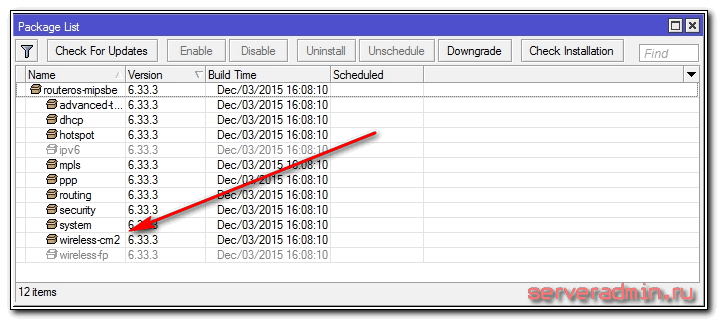
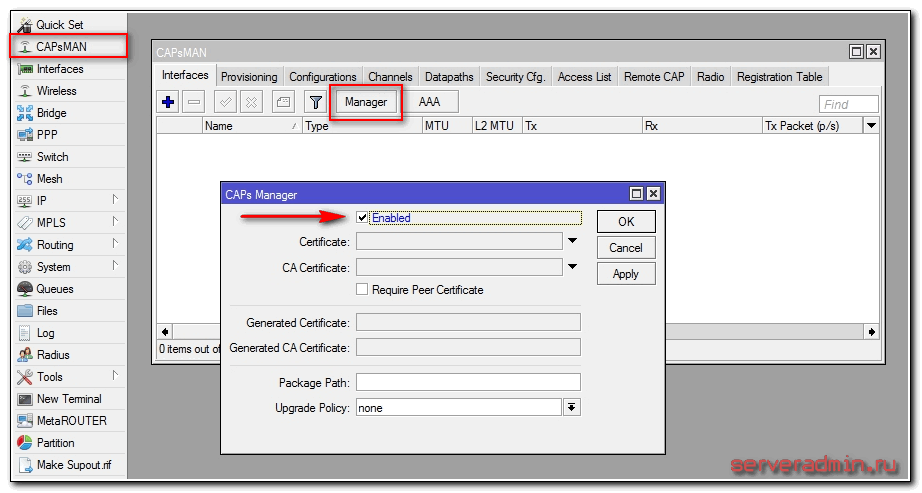
Чтобы активировать функцию контроллера беспроводной сети, идем в раздел CAPsMAN, нажимаем на Manager и ставим галочку Enabled.
Прежде чем продолжить настройку, расскажу немного о принципе работы системы. В сети настраивается контроллер управления точками доступа. К нему подключаются отдельные wifi точки и получают с него настройки. Каждая подключенная точка доступа образует виртуальный wifi интерфейс на контроллере. Это позволяет стандартными средствами управлять траффиком на контроллере.
Наборы настроек на контроллере могут быть объединены в именованные конфигурации. Это позволяет гибко управлять и назначать различные конфигурации разным точкам. К примеру, можно создать группу с глобальными настройками для всех точек доступа, но при этом отдельным точкам можно задать дополнительные настройки, которые будут перезаписывать глобальные.
После подключения управляемой точки к мастеру сети, все локальные wireless настройки на клиенте перестают действовать. Они заменяются настройками capsman v2.
Продолжим настройку контроллера. Создадим новый радиоканал и укажем его параметры. Идем на вкладку Channels, жмем на плюсик и указываем параметры.
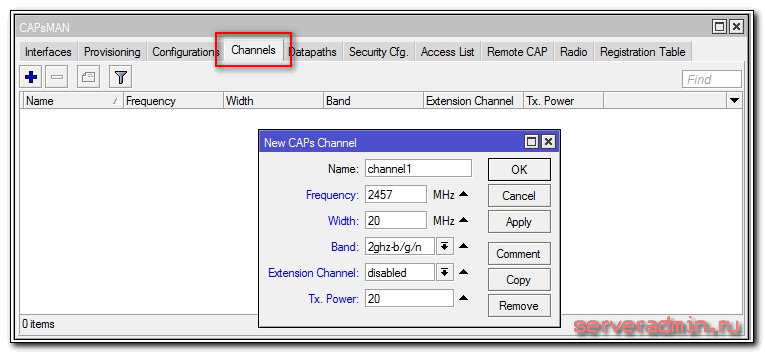
Выпадающего списка в настройках нет и это неудобно. Подсмотреть настройки можно в текущих параметрах Wifi, если он уже настроен.
Продолжаем настройки на вкладке Datapaths. Жмем плюсик и задаем параметры.
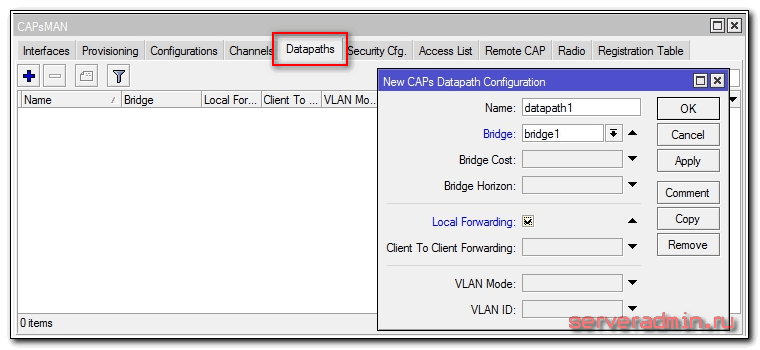
Немного задержусь на параметре local-forwarding. Если он активирован, то всем траффиком клиентов точки доступа управляет сама точка. И большинство настроек datapath не используются, так как контроллер не управляет траффиком. Если этот параметр не установлен, то весь трафик с клиентов поступает на контроллер сети и там управляется в зависимости от настроек. Если вам необходим траффик между клиентами, то укажите параметр Client To Client Forwarding.
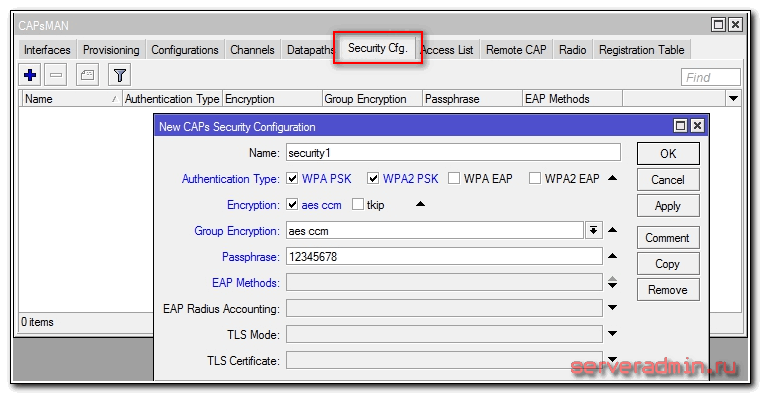
Переходим к настройкам безопасности. Открываем вкладку Security Cfg. и жмем плюсик.
Пришло время объединить созданные ранее настройки в единую конфигурацию. Таких конфигураций может быть несколько с разными настройками. Для примера достаточно и одной. Идем на вкладку Configurations и жмем плюсик.
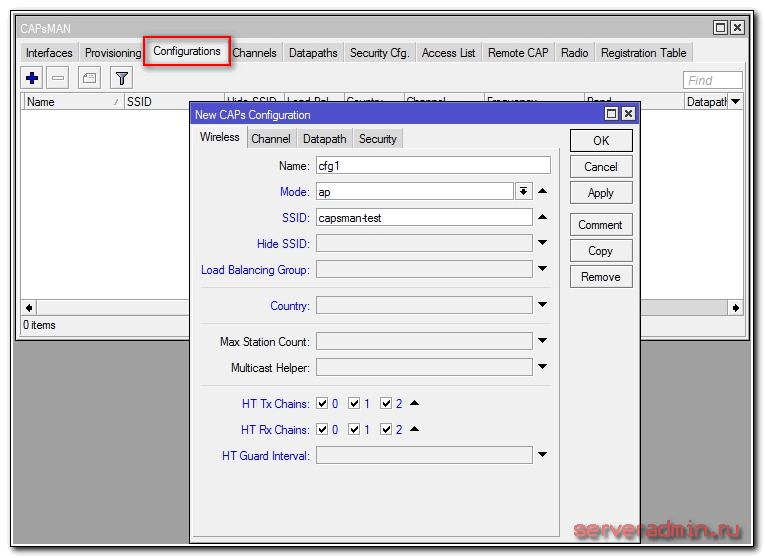
На первой вкладке Wireless указываем имя конфигурации, режим ap и имя SSID будущей бесшовной wifi сети. На остальных вкладках просто выбираем созданные ранее настройки.
Основные настройки mikrotik контроллера capsman v2 закончены. Теперь нужно создать правила распространения этих настроек. Как я уже ранее писал, разным точкам можно предавать разные конфигурации. Контроллер может идентифицировать точки доступа по следующим параметрам:
- Если используются сертификаты, то по полю Common name сертификата.
- В остальных случаях используются MAC адреса точек в формате XX:XX:XX:XX:XX:XX
Так как в своем случае я не использую сертификаты, создадим правило распространения настроек на основе MAC адреса. А так как у меня единая конфигурация для всех точек, то и правило распространения будет самое простое. Сделаем его. Переходим на вкладку Provisioning и жмем плюсик.
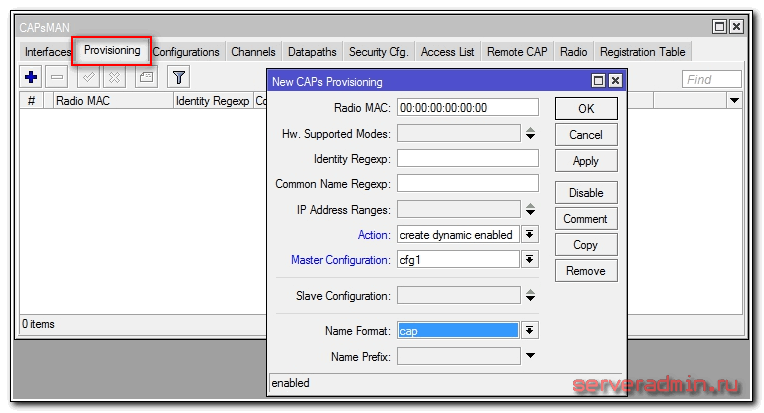
На этом настройка контроллера capsman v2 закончена, можно подключать wifi точки доступа к нему.
