

- License
- Setting Up Your Account
- Using Advanced and Standard Versions
- Using the Touch Client
- Signing In and Signing Out
- Sign In
- Sign Out
- Choose a Default Client Version
- If Your Session Expires
- Self-Service Account Recovery
- Changing Your Password
- Navigating the Zimbra Web Client
- Use Keyboard Shortcuts
- Use Browser Tools
- Get Help
- Personalizing Your Account
- Change the Theme
- Change Font and Size
- Change Your Default Time Zone
- Change the Language
- Change Text Direction
- Move the Reading Pane
- Change the Pane Size
- Accessing External Accounts
- Add an External Account
- Set Up POP Behavior for Your Account
- Using Exchange Web Services (EWS)
- Clients Supported for EWS
- Configure Mac Outlook
- Configure Mac Native Mail Client
- Managing Your Email
- Customizing Your Mailbox Initial View
- View Email Messages by Conversation
- Change the Message View
- Using Zimlets
- Enable or Disable a Zimlet
- Using A Reading Pane
- Turn Reading Pane On or Off
- Set the Reading Pane for Marked as Read Behavior
- Changing How Often Your Account Checks for New Mail
- Setting Desktop Alerts For New Email Messages
- Moving Less Important Mail Out of the Inbox
- Automatically Forwarding Messages You Receive
- Receiving New Mail Notification to Another Email Address
- Marking Multiple Messages for the Same Action
- Delete more than one message at once
- Tag more than one message at once
- Print more than one message at once
- Forward more than one message at once
- Moving Email Messages
- Sorting Messages in the Content Pane
- Group Messages
- Removing Spam
- Mark Email as Spam
- Mark Email as Not Spam
- Empty the Junk Folder
- Spam Mail Options
- Maintaining a Trusted Addresses List
- Finding the Origin of an Email Message
- Managing Your Account Quota
- Reduce the Size of Your Mailbox
- Folder Information
- Setting Up an Out of Office Message
- Reading Mail
- Read a Message in Conversation View
- Read a Message in Single Message View
- Mark a Message or Conversation as Unread
- Opening Attachments to an Email Message
- View Attachments
- Remove Attachments
- Preview Attachments
- View Attachments as HTML
- Displaying Messages in HTML Format or Plain Text
- Set Message Display Format
- Turn Off Preference to Display Images in Messages
- How Address Bubbles Work
- Returning Read Receipts
- Printing an Email Message
- Print a conversation (all messages)
- Print one message in a conversation
- Deleting a Message
- Empty Your Trash Folder
- Recover Items Purged from Trash
- Assigning Retention Policies to Email Folders
- Composing and Sending Email
- Composing a New Email Message
- Addressing a Message
- Use Automatic Address Completion
- Adding Attachments
- Add an Attachment to a Message
- Add Attachments Using Drag and Drop
- Removing an Attachment
- Using Signatures Automatically
- Using Other Account Identities When You Send an Email
- Add Personas
- Delegate Others to Send Messages on Your Behalf
- Delegate Send Settings
- Sending Email on Behalf of Someone Else
- Customizing Your Options for Composing Messages
- Using HTML to Compose Messages
- Request a Return Receipt
- Save a Message as a Draft
- Mark the Priority Level of a Message
- Spell Check a Message
- Adding Words to the Spell Dictionary
- Spell Check All Messages Before They are Sent
- Replying to Email Messages
- Reply to a Message
- Forwarding Email Messages
- Forward an Email Message
- Forward a Message as the Originator
- Forward a Message as a Redirected Message
- Set Preferences for Forwarded Email
- Undeliverable Email
License

Synacor, Inc., 2016-2018
Synacor, Inc., 2016
40 La Riviere Drive, Suite 300
Buffalo, New York 14202
Setting Up Your Account
The Zimbra Web Client is a full-featured messaging and collaboration
application that offers reliable email, address books, calendaring,
task lists, and Web document authoring capabilities..
Versions of the ZWC include Advanced, Standard,
Mobile or Touch Client.
You can also use Exchange Web Services (EWS), which provides
functionality for Zimbra to communicate with the Exchange Server.
Using Advanced and Standard Versions
The Advanced version offers the full set of Web collaboration features. This is usually the default setting. It works with most current browsers and faster Internet connections.
If you have a slow internet connection or prefer HTML-based messaging, you can use the Standard version, which has many of the same features.
Using the Touch Client
For information about the Touch Client, see Using the Touch Client.
Signing In and Signing Out
You can select the Stay signed in option on the log-in screen, which allows you to stay signed in to the ZWC even if your browser closes.
If you leave your web client open, but do not access your mailbox for a period of time, your session might time out, and you will need to sign back in.
Sign In
To stay signed in until the session expires or you sign out, select Stay signed in.
If you do not want to use your default client, you can change the version. Click the drop-down menu and select the client version you want to use.
Click Sign In.
Sign Out
To prevent others from having access to your email account, always sign out when you are not using your computer. If you browse to a different site without signing out first, your session might sign out automatically when it reaches the specified timeout.
In the top-right corner, click the arrow next to your name and select Sign Out.
Choose a Default Client Version
You can set the default client version of ZWC at sign in. You can always switch to a different client version at sign in.
Go to the page.
In the Sign in section, select how you want to sign in.
Advanced (Ajax). Offers the full set of Web collaboration features. The advanced client works best with newer browsers and faster Internet connections.
Standard (HTML). Recommended when Internet connections are slow or when using older browsers.
The next time you sign in, your selection appears as the default.
If Your Session Expires
Your system might log you out if your session is inactive for a preconfigured period of time.
If you are automatically logged out, simply log in again and continue working.
Self-Service Account Recovery
Changing Your Password
Go to the page.
Go to , click Change Password.
Click Change password.
Navigating the Zimbra Web Client
When you sign in, you see a screen view similar to the one below. This view is the Mail view. The view changes when you use another application, such as Address Book or Calendar.
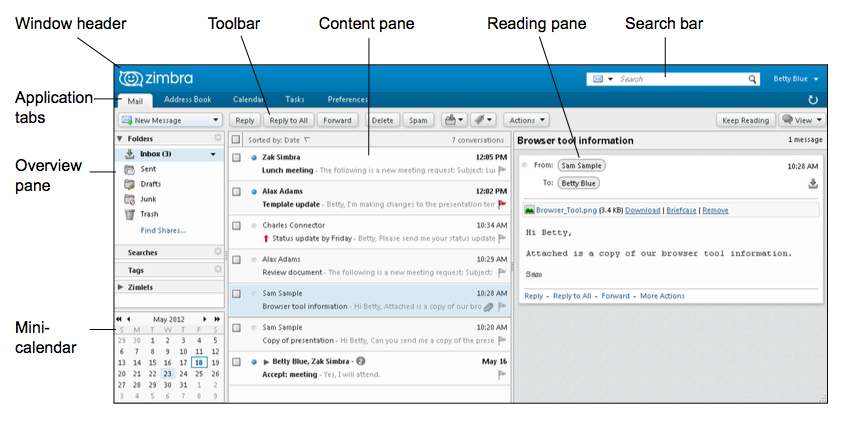
Figure 1. Web Client
Use Keyboard Shortcuts
Many ZWC functions and commands have keyboard shortcuts.
To view a list of shortcuts while working in your mailbox, press .
If you want to leave the shortcut window open while you work in your account, click New Window.
To print the list, go to and click Print in the top-right corner.
Use Browser Tools
Use your browser’s Back button to return you to the previous page you were viewing. You can also use the Forward button.
Do not use the browser’s Reload or Refresh button. Clicking Reload or Refresh restarts your session.
Get Help
Passing your mouse cursor over items, such as command buttons, conversations, or mail addresses in message headers, displays a description about the item.
Personalizing Your Account
You can use the actions in this section to personalize your account. Most options are set on the page.
Change the Theme
A theme is a color scheme that is used in the appearance of ZWC. There are different themes available which you can select in your Preferences settings. The default theme in ZWC is Harmony.
Go to the page.
In the Appearance section, select the theme you want to use.
Change Font and Size
You can change the typeface and size for the text and font size in your view of the ZWC.
Go to the page.
In the drop-down menu, select the font. You can also change the Display Font Size and Print Font Size.
Change Your Default Time Zone
In the advanced client, the time zone setting on your computer is used as the time stamp for received messages and calendar activities.
In the standard client, the time zone setting is used to localize the time for received messages and calendar activities. The time zone for your account using the standard client can be different from your computer time zone.
Go to the page.
In the drop-down menu, select the time zone you want to use.
Change the Language
You can change the language used to display text.
Go to the page.
In the section, select a language to use.
Change Text Direction
You can change the direction of your text from left to right, or right to left.
Go to the page.
In the section, select Left to Right or Right to Left.
To switch the text direction from the toolbar, select Show direction buttons in compose toolbar.
When you change the text direction and click Save, a warning displays asking if you want to reload your account now to display the new font, or to display the new font the next time you sign in.
Move the Reading Pane
You can change the display to a three-pane view, with the Reading Pane displaying at the bottom, on the right, or completely turned off.
On the toolbar, click View located on the upper right and select the reading pane you want to display.
Change the Pane Size
For split-pane windows, such as the Conversation view, you can increase or decrease the size of the upper and lower panes.
Click and drag on the bar separating the panes up or down.
Accessing External Accounts
Instead of logging on to each of your external email accounts, you can retrieve external email messages from your ZWC account. You can also create a persona to use when you reply to or forward a message received from the external account.
Add an External Account
If you set up a POP account, go to the page to set up how messages in that account should be downloaded to your ZWC account.
Set Up POP Behavior for Your Account
If you set up an external POP account, you can configure the POP behavior when messages are downloaded to your account.
Go to the page.
In the Access from Other Mail Clients section, select how to handle messages.
Using Exchange Web Services (EWS)
Exchange Web Services (EWS) provides functionality for Zimbra to communicate with the Exchange Server.
Clients Supported for EWS
Client supported include:
Mac® Outlook 2011
Mac Native Mail Client
Configure Mac Outlook
To configure EWS in Mac Outlook for use with Zimbra Collaboration:
Click the plus symbol (+) and select Exchange form the drop-down menu.
Enter your Exchange account E-mail address.
Uncheck the Configure automatically to display this option
Enter the Zimbra Server hostname.
Click Add Account.
Configure Mac Native Mail Client
To configure EWS in Mac Native Mail Client for use with Zimbra Collaboration:
Open Mail Client.
Click the plus symbol (+)
Enter your Full Name.
Enter your E-mail address and Password.
Select Exchange from the drop-down menu.
Enter the Zimbra Server hostname.
Managing Your Email
This chapter describes how to customize your mailbox and how to handle messages you receive.
Customizing Your Mailbox Initial View
In your page, Default Mail Search specifies the initial view when you log into your mailbox. The default search is your Inbox folder. Therefore, when you sign in, the results of your Inbox display.
You can change this to have another folder, tag, or a saved search displayed when you first open the web client.
Go to the page.
View Email Messages by Conversation
Conversations can span folders. For example, one could be in your Inbox, another in your Sent folder, and others in another folder. If you move a conversation from one folder to another, all messages within that conversation are also moved to that folder. Messages in the Sent folder and in the Trash folder are not moved.
To create a new conversation thread, you must create a new message, not reply to or forward an existing message.
Change the Message View
Email messages in your mailbox can be organized by the date a message is received and by Conversation.
On the Mail tab toolbar, click the View drop-down menu.
Select either By Conversation or By Message.
Using Zimlets
Enable or Disable a Zimlet
Go to page.
Choose Zimlets that you want to enable or disable.
Using A Reading Pane
You can use the Reading Pane to preview messages in your Inbox and other folders. If you have the Reading Pane on, when you click on an email message, the message displays in the Reading Pane and the message is marked as read.
To adjust the size of the Reading Pane, place your pointer on the divider bar and drag the bar.
Turn Reading Pane On or Off
The Reading Pane lets you read email messages from your Inbox without opening the email. Depending on your view, the Reading Pane can be at the bottom or on the right, or turned off.
On the Mail tab toolbar, click the View drop-down menu.
Select the Reading Pane option.
Set the Reading Pane for Marked as Read Behavior
You can also select whether messages you view in the Reading Pane are marked as read or not marked as read.
Go to the page.
In the section, select how messages are handled when the message is selected.
Changing How Often Your Account Checks for New Mail
You can set menu:Preferences for receiving new messages including how often you receive email messages and whether you are notified when you receive new messages.
Your account is updated with new messages based on the polling interval set up in the mail menu:Preferences Check New Mail drop-down menu. The default is every five minutes. If you are expecting an email message, you can click the refresh icon on the right side of the toolbar any time to receive new email immediately.
Go to the page.
In the drop-down menu select how
often to check for new mail.
If you select Manually, you must click the reload icon to get new email.
Setting Desktop Alerts For New Email Messages
You can set up desktop alerts for new email notification. To receive alerts, your mailbox must be opened.
Go to the page.
In the section, select how you want to be notified when new messages arrive. Select any of these options.
Moving Less Important Mail Out of the Inbox
You can set up the Activity Stream filter to have email messages that are less important, such as newsletters and social update communications, delivered to the Activity Stream folder instead of your Inbox. The Activity Stream Folder is added to your personal folders list in the Overview pane.
From the Mail tab, click the gear icon in the Mail Folders heading in the Navigation pane and select Activity Stream.
You can also set this up from the page, Activity Stream Settings link.
In the Activity Stream dialog box, select Enable moving messages into Activity Stream.
Messages sent to a distribution list that you are a member of
Commercial mass marketing and bulk mail messages
Messages where your address is not in the To or in the To or Cc field
Messages from people not in your Contacts
If you want to set more advanced filtering for messages delivered to the Activity Stream folder, click the Advanced Controls link on the Activity Stream dialog or see the Working with Email Filters chapter.
Automatically Forwarding Messages You Receive
You can configure your email menu:Preferences to automatically forward a messages you receive to another account.
Go to the page.
In the text box enter the email address where email messages should be sent.
If do not want the messages saved in your mailbox, select Remove local copy of message.
Receiving New Mail Notification to Another Email Address
You can configure your email menu:Preferences to notify you at another email address when you receive an email message to your Zimbra mailbox. This feature might be useful if you do not receive a lot of email to this account, but when you do receive email, it’s important enough to require a timely response.
Go to the page.
In the section, select Send a notification message to.
Enter the email address in the text box.
Marking Multiple Messages for the Same Action
In your Mail view, use the check box on the Content pane to select one or more messages or conversations to perform the same action on.
Selecting the box in the header automatically checks all the messages on the page.
Delete more than one message at once
In the Content pane, select the boxes for messages that you want to delete.
Right-click and select Delete.
Tag more than one message at once
In the Content pane, select the boxes for messages that you want to tag with the same tag.
Right-click and select Tag Conversations.
Select the tag from your list or create a new tag.
Print more than one message at once
In the Content pane, select the boxes for messages that you want to print.
Right-click and select Print.
In the Print dialog, click OK. All the messages are printed as one continuous file.
Forward more than one message at once
In the Content pane, select the boxes for messages that you want to forward.
Right-click and select Forward. A message compose page opens with the email messages attached.
Complete the message and send.
Moving Email Messages
You can move email messages or entire conversations from a folder.
Drag and drop the item to the desired folder in the left-hand Overview pane.
Right click the message and select Move. The Move Conversation dialog displays. Select the destination folder and click OK.
If you are moving a few messages within a conversation, the conversation appears in both places. The Conversation Detail View window shows the new location of the message that was moved.
Sorting Messages in the Content Pane
You can sort your email messages in a folder by Subject, Size, Date, Attachment, Flag, Priority, or All/Unread. You can only sort by one column at a time.
In the Content pane header, right-click and select the sorting option. The header displays the sort order.
Group Messages
In each of your folders, you can group message by date or by size in ascending or descending order.
When you group messages by date, messages display grouped by messages received today, yesterday, last week, two weeks ago, three weeks ago, last month and older.
When you group messages by size, messages display grouped by enormous (messages larger than 5MB) and tiny (messages less than 10KB), Grouping message by size is a good way to manage your mailbox quota by finding the largest messages to remove from your account.
Select the folder and in the Content pane header right-click Sorted by and select Group By.
Select to group by date or size.
Select the order that the messages should be displayed; ascending or descending.
Removing Spam
Mark Email as Spam
Select the message to mark as junk.
+
The email is moved to your Junk folder.
Mark Email as Not Spam
Sometimes messages that are not junk are placed in the Junk folder. You can move the messages to the appropriate folder.
Drag the message to another folder.
Empty the Junk Folder
Spam Mail Options
Go to the page.
Maintaining a Trusted Addresses List
You can specify email addresses from specific domains as trusted addresses so that embedded images in messages you receive from these addresses automatically display when you open the message.
+
You can add up to 500 addresses to this list.
Go to the page.
Enter the email address or domain name in the text box.
Finding the Origin of an Email Message
When you receive a message and you want to see message transport history, you can right-click on a message and select Show Original. The text page displays header information along with the text of the body of the message.
To find the origin of the message, right-click the message and select Show Original.
A new window opens with the information displayed.
Managing Your Account Quota
To display your mail quota and how much you have used, hover the mouse over your name on the toolbar.
You receive an email notification.
Your email interface displays a notification when you log in.
Email sent to you might be returned to the sender, along with a notification that your mailbox is full.
Reduce the Size of Your Mailbox
Delete old messages that are no longer needed.
Delete large file attachments to messages. Save the file attachments
locally if you want to preserve them.Empty the Trash folder.
Folder Information
If you hover your cursor over a folder, the number of messages in the folder and the size of the folder display.
Setting Up an Out of Office Message
You can create a message that automatically replies to people who send you messages when you are out of the office.
If you want people who send you email that our not in your domain to receive a different reply message, you can create a separate reply message.
Go to the page.
Check Send auto-reply message.
In the Auto Reply Message text box, type the response to send while you are out of the office.
If you do not specify a specific time frame, auto-replies are sent until you select Do not send auto replies.
You can subscribe to Web sites that provide your favorite RSS (Really Simple Syndication) and podcast feeds to send updated information directly to your mailbox. You must know the URL of the feed to set up the subscription.
Click the gear icon in the Folders heading and select New Folder.
In the Name text box, type the name of the RSS feed folder.
Check Subscribe to RSS/ATOM feed.
Enter the URL for the feed in the URL field.
Select where to add the RSS feed folder in the folder menu. If you choose the root folder, the new folder is placed at the highest level in your folder view, which is the same level as your Inbox folder.
Click OK. The new folder appears in the Overview pane with the RSS feed icon .
Your RSS data feed is automatically updated every 12 hours. Click Load Feed in the toolbar to update the content at any time.
Reading Mail
By default new messages are placed in your Inbox. If you have mail filter rules, new messages can appear in folders other than your Inbox. The number in parentheses next to each folder name indicates the number of unread messages within that folder.
Read a Message in Conversation View
To read a message in the Conversation view double-click the conversation containing the message. The individual messages display in the Reading pane.
To expand the message to see all the conversations, click Show quoted text at the end of the message.
To collapse the conversation view so only the last message is displayed, click Hide quoted text at the end of the message.
To collapse all messages to view only the sender’s name and the snippet of the first line of the message, click the + icon in the message header.
To open the message, click the line that contains the message you want to read.
If you have Reading Pane enabled, the message body appears in the Reading Pane. Otherwise, double-click the message. The message is displayed in the Content pane.
Read a Message in Single Message View
If the Reading Pane feature is enabled, click the message and read it in the Reading Pane.
If the Reading Pane feature is not enabled, double-click the message. The message is displayed in the Content pane.
Mark a Message or Conversation as Unread
Conversations containing unread messages are shown in bold with a blue dot to the left of the sender’s name.
To mark an entire conversation as unread in your Inbox, click the blue dot. When the conversation is expanded, all messages within the conversation display as unread and with blue dot.
To mark an individual message in a conversation as unread, click the triangle to expand the conversation and click the dot next to the message you want to display as unread. The conversation displays in your Inbox as being unread, but when the conversation is expanded only the unread message displays with the blue dot.
Opening Attachments to an Email Message
Email messages can include attached files such as word processing documents, spreadsheets, text files, ZIP files, images, executable applications, or any other type of computer file that resides on the sender’s computer network. Messages that contain attachments display a paper clip next to the subject.
If the file type is one that is supported by the installed software on your computer, you can typically double-click the file and your computer automatically launches the right application for reading that file.
View Attachments
To view an attachment open the message:
Click the name of the attachment to open the attachment (if you have the correct application available).
Click Download to choose whether to open the file or save it on your computer. If you choose Save to Disk, a browser dialog box appears so that you can choose where to save the file.
The file is still attached to the message until you remove it.
Remove Attachments
Attachments to your email affect your quota. You may want to remove larger attachments from the message. Removing the attachment deletes the file from your mailbox. If you downloaded the file, you still have a copy.
To remove an attachment open the message and click Remove.
Preview Attachments
If you have the Preview option, you can quickly view the content of the attachment without having to download or open the attachment.
To preview an attachment click Preview to open the attachment even if the application is not installed on your network.
View Attachments as HTML
Displaying Messages in HTML Format or Plain Text
You can view email messages in two formats, HTML or plain text.
HTML messages can have text formatting, numbering, bullets, colored background, and links, which can make messages easier to read.
Plain text messages can always be read by other email clients. Plain text does not support any text formatting, styles, links or images. You can view a message in plain-text mode even if it contains HTML. The HTML tags are displayed in the body of the message in the plain text view.
Set Message Display Format
Go to the page.
In the , select either As HTML (when
possible) or As Text.
Turn Off Preference to Display Images in Messages
When you display mail as HTML, images attached to a message are automatically displayed when you open the message.
To change this go the the page, Images and deselect Display pictures automatically in HTML Email.
How Address Bubbles Work
When addressing an email, you can right-click on a bubble to display a menu of options, including Delete, Edit, Edit Contacts.
When reading an email message, you can right-click on a bubble to display a menu of options, including Add to Contacts, New Email, Advanced Search.
You can left-click a single bubble and drag and drop it into another address field or select multiple bubbles and drag the addresses using the «rubber band» selection tool to move bubbles. «Rubber band» selecting is left clicking on the white space on the field and dragging a selection box across selected bubbles. The selected bubbles are highlighted in blue. You can now drag and drop them to another field.
You can use to copy and to paste the address.
You can tab or use the left/right arrow keys to navigate between bubbles.
When autocomplete is used to select a distribution list, the bubble includes a + (plus) sign to identify the address as a distribution list. You can click the + to expand the list to display distribution list members. You can also click on an address in the list to send an individual email to the selected addressee.
Bubbles are enabled by default. You can enable or disable bubbles by going to the page, Other section.
Returning Read Receipts
Go to the page, Receiving Messages section
In the Read Receipt section, select how you want read receipt requests to be handled.
Printing an Email Message
The default font size used when a message is printed is 12 points. You can change this from the page.
Right-click on the message and select Print. The message opens in a new window. A standard print dialog appears.
Choose a printer.
Click OK. The message is sent to the selected printer.
Close the message window.
Alternately, you can select Print from the Actions link on the toolbar.
Print a conversation (all messages)
Right-click the conversation to be printed, and select Print. The conversation opens in a new window. A standard print dialog appears.
Choose a printer.
Click OK. The conversation is sent to the selected printer.
Close the conversation window.
Alternately, you can select Print from the Actions link on the toolbar.
Print one message in a conversation
Open the conversation and select the message to print.
At the end of the message, click the gear icon and select print. The message opens in a new window. A standard print dialog appears.
Choose a printer.
Click OK. The message is sent to the selected printer.
Close the message window.
Deleting a Message
You can delete specific email messages or a complete conversation thread.
Right-click the message or conversation to delete and select Delete. Deleted messages are moved to your Trash folder.
You can recover files from Trash within 30 days of deleting them. After 30 days, the items are permanently deleted.
To permanently delete a message, click . Messages are permanently deleted from your account.
Empty Your Trash Folder
The Trash folder is available for each application in your account. When you open the Trash folder from an application such as Mail, only items for that application are displayed. But when you select Empty Trash from any of your applications, items from all applications are deleted.
You can empty your Trash folder any time.
Right-click on the Trash folder and select Empty Trash. All messages are deleted.
Items deleted from Trash are removed from your account and your account quota is updated.
Recover Items Purged from Trash
If Recover Deleted Items displays when you right-click the Trash folder, you have the ability to recover email messages you deleted from Trash.
Right-click on the Mail Trash folder and select Recover Deleted Items.
Select one or more messages to recover.
Use the Search text box to find a specific item to recover.
Click the Folder icon below the Search text box and select the destination folder or create a new folder.
Assigning Retention Policies to Email Folders
If your organization notifies you to apply an email message retention policy to your email folders, you set the retention policy for each folder. You do not set a retention policy on the Junk or Trash folders. You can also set your own custom policy for a folder.
Two options can be set up:
Message Retention. When Enable Message Retention is selected, when you select to delete a message in the folder with a receive or sent date within the range configured, a warning displays stating that the message is within the folder’s retention period to remind you not to delete the message.
Message Disposal. Messages in the folder that are older than the time configured are automatically deleted. You are are not notified.
In the Navigation pane, right-click on a mail folder and select Edit Properties.
Click the Retention tab.
To set the retention policy, select Enable Message Retention.
In the Retention Range drop down list, select which retention policy to apply. If you are setting a custom policy, in the text box enter the number of years, months, weeks or days and select the period from the drop-down menu.
To set when messages should be deleted from the folder, select Enable Message Disposal.
In the Disposal Threshold drop down list, select which policy to apply. If you are setting a custom policy, in the text box enter the number of years, months, weeks or days and select the period from the drop-down menu.
Composing and Sending Email
You can compose and send your email messages as soon as you write them, compose a draft and return to it later to finish and send, or compose the message and specify a time in the future to send the message.
You can customize your options for composing messages in your page.
Composing a New Email Message
Depending on your mail preferences, when you click New Message either a Compose tab appears in the Application toolbar or the compose page opens in a separate window.
In the Mail tab click New Message.
Depending on your email preferences, the blank compose page opens in a
new tab or opens as a separate compose window.In the To text box, enter the email addresses of the person or persons to whom you are sending the message. Either type the address or click To to search through your contacts or the global address list.
If you have more than one email identity (also known as a persona) configured, From is displayed above the To: field. Select the identity to use for this email.
(Optional) In Options, click Signatures and select the signature that should be added to the message.
(Optional) To send a copy of the email to other recipients (Cc) or to send a blind copy (Bcc) without the recipients knowledge, enter email addresses in the Cc and Bcc fields.
In the Subject field, tell the recipient what the message is about.
Click Send to send the email message.
A copy of the message you sent is saved in your Sent folder.
Addressing a Message
The auto complete feature suggests names as you type into the To, Cc, and Bcc fields in a new message. A list of possible addresses from your contacts in which either the first name, last name, or email address starts with the text you typed is displayed.
As you continue to type, the list of matching addresses becomes smaller as fewer matches are available. The list disappears if there are no matches.
When you add an “a” (Da) into the To field, the list would display:
Use Automatic Address Completion
The comma, semicolon, and Return/Enter keys all complete the first match in the list and place it in the field.
ESC hides the list.
The up and down arrow keys change the selection in the list. Moving the mouse cursor over the list also changes the selection.
To select an address when composing an email
Type enough characters until the contact you want is the first match.
Press a quick key, such as Enter or the semicolon. The address displays in the recipient field.
Adding Attachments
If the file type is one that is supported by the installed software on your computer, you can typically double-click the file and your computer automatically launches the right application for reading that file.
Add an Attachment to a Message
You can attach documents, spreadsheets, pictures, slide shows, and other types of files to an email message.
Compose the email message.
Below the Subject field, click Attach and select My Computer.
Select the files and click Open. The file names displays below the Subject text box.
Click Send to send the message and the attachments.
Add Attachments Using Drag and Drop
You can easily add an attachment to an email message by dragging the file from a folder into your email.
Select one or more files and hold down the cursor on the file(s) to be attached.
Drag the files to the message header area and release the cursor. The file names are displayed in the header.
Removing an Attachment
To remove an attachment, click the x in the attachment bubble.
Using Signatures Automatically
You can include an automatic signature at the end of an email. A signature can include your name and any additional text. If you are using an HTML editor, you can format your signature, add a link to a URL and add graphics.
You can create more than one signature. For example, you can have a formal signature for emails sent to customers and an informal signature for emails sent to friends.
If you create multiple email identities (also known as personas), you can create different signatures and assign them to specific addresses.
Go to the s page.
In the Name text box, type a descriptive name to identify the signature. You can create multiple signatures, so using an identifiable name here is helpful.
(Optional) To format in plain text, click Format as HTML and select Format as Plain Text.
In the text box, type the signature text as you want it to appear. If you are using Format as HTML, you can add images and create links to your signature text.
In the Using Signatures section, select the default signature from the drop down menu to use with messages sent from your various accounts.
Select the placement of your signature in a message.
Select Above included messages to add your signature at the end of your reply and before the included messages.
Select Below included messages to add your signature at the end of the message.
Using Other Account Identities When You Send an Email
When you send email, it is identified with an email account. When your email account is set up, your account name is your primary identity. However, you can create other email identities called personas to manage different types of email.
For example, you can create one persona for your business email and another for your personal email.
If you have more than one persona or added external accounts, when you send an email you can select the account you want to use as the From address.
Add Personas
Creating different personas allows you to use multiple email addresses from your mailbox. For example, you could use your primary account persona for your business email correspondence, and create a new persona for your personal email correspondence.
Delegate Others to Send Messages on Your Behalf
You can give other people permission to send email messages on your behalf. When messages are sent on your behalf, the From address shows your name and the name of the person who is sending the message. This is not the same as sharing your Inbox with another person. The person who is sending a message on your behalf is working in his own email account. When a new message is created, your name is selected from the From field drop-down menu as the From address.
You can also give permission to people to send messages as you. The From address shows your name and email address as the message sender, but the actual message is sent from the delegated person’s Inbox.
Go to the page.
In the section, click Add Delegate.
Check the permissions you want to give.
An email message is sent to the person letting him know that he has been granted delegate permissions.
Delegate Send Settings
When you delegate someone to send messages on your behalf, you can select to have a copy of the message sent to your sent folder, a copy sent to the delegate’s sent folder, a copy sent to both your and the delegate’s sent folders, or select no copy be sent.
Go to the page.
In the section, select the option you want to enable by clicking the radio button next to the option.
Sending Email on Behalf of Someone Else
If you have been granted delegate permissions for another person, you can send email messages on their behalf. The message’s From address includes both your email address and the person you are sending the message for. If you were given permission to send a message as that person, the person’s email address is in the menu. When you select this, your address is not included in the message.
In your Inbox, click New Message.
In the From field, select the name of the sender from the drop-down menu.
Compose and send the message.
Customizing Your Options for Composing Messages
From your preferences you can select to create simple plain text messages or create message with HTML styling, and you can set up signatures and personas that can be applied to messages you send.
In addition to the options for composing messages, other options you can set up include return receipt requests, whether to compose messages in a new window and to require that your message are spell checked before they are sent.
Go to the page, Composing Messages section.
Select how you want your messages to be sent, As HTML or As Text.
If you select As HTML, in the drop down menus, select the Font style, Size, and Color.
In Settings, select the options for how you want to manage composing messages.
(Optional) Click Accounts Page to go to the Accounts preferences page and set up your personas.
Using HTML to Compose Messages
Messages created using the HTML editor can have text formatting, numbering, bullets, colored background, tables, and links. However, some email clients do not accept messages formatted in HTML. You can change the editor for a specific message.
To change the format for the message that you are sending, under Options,
select either Format As HTML or Format As Plain Text.
Request a Return Receipt
To set this as the default
Go to the page, and in the Composing Messages section, select Always Request read receipt.
To set this request per message
Before sending the message, in the Options drop-down list, select Request Read Receipt.
Save a Message as a Draft
You can save a message to finish and send later.
Click Save Draft. The message is saved in the Drafts folder.
To retrieve a draft, open the Drafts folder and click on the message. When the message is sent, the message is removed from the Drafts folder.
Mark the Priority Level of a Message
You can indicate a message’s level of importance. For example, if you have a request that needs to be replied to as soon as possible.
Before you send the message, in the Priority drop-down menu in the message header, select the priority option, high, normal, or low.
The recipient sees the message priority flag in their mailbox and in the message.
Spell Check a Message
You can use the spell check feature at any time to check your spelling.
On the toolbar, click the Abc link. Words in the email message that are unknown to the spell checker are highlighted.
Right-click on a highlighted word. A drop-down menu displays suggested corrections.
Select the correct word. The word is highlighted in another color.
To accept your changes and close the spell checker, click Resume editing.
Before you close the spell checker, you can change a corrected word back to the original spelling. Click on the highlighted word and select the initial spelling from the top of the pop-up
Adding Words to the Spell Dictionary
Right-click on the correctly spelled word and click Add.
You cannot remove words from your dictionary after they are added. You can also configure the spell check to ignore words, right-click on the word and click Ignore.
Spell Check All Messages Before They are Sent
Go to .
Select the option Mandatory spellcheck before sending a message.
Replying to Email Messages
You can reply to the sender of a message or to the sender and all recipients.
By default, when you reply to a message, the original message is included in the body, but the original attachments are not. You can also decide to prefix each response in the message to track the different replies.
For example, each reply within the message is marked with an angle bracket (>). The most recent reply has one (>) before each line, the reply before that has two (>>), before that three (>>>):
> Previous message
>> Message before previous message
>>> And so forth
Reply to a Message
Select the email you want to reply to.
Click Reply or Reply to All in the toolbar. A new compose window is displayed with the address(es) in the header and the original message in the body.
If you view message in the Conversation view, you can click reply at the bottom of the message
Type your reply.
Click Options on the toolbar and select an option if you want to change how the original message is included in the reply.
To reply to the message in the same format it is received, select Reply/ Forward using format of the original message. This ensures that the recipient gets the message in the most readable format.
Go to the page, Composing Messages section.
To reply to the message in the same format it is received, select Reply/
Forward using format of the original message.Select whether to include the original text in your reply message. If you are
including the original message:Choose whether to mark the previous responses with a character or include the original details in the header (The To, From, and Subject fields). You can also include the original message as an attachment.
Forwarding Email Messages
You can forward an email message to someone else. Forwarding a message includes all file attachments.
Forward an Email Message
Select the email you want to forward.
Click Forward on the toolbar. The text of the forwarded message appears in the body of the compose page, unless you have set your preferences to forward messages as attachments.
Forward a Message as the Originator
You can forward an existing message as if you are the originator of the message. The forwarded notice is not added to the subject field and the header information shows you are the originator.
Right-click on the message and select Edit as New.
Address the message, remove existing address if necessary.
Forward a Message as a Redirected Message
Redirecting a message lets you send an email message you received as if the original author sent the message. Redirect a message instead of forwarding it makes it easier for the recipient to reply to the original sender.
Right-click on the message and select Redirect.
In the Redirect text box, enter the recipients addresses.
Set Preferences for Forwarded Email
When you forward an email you can choose how to handle the original text when forwarding an email message.
Go to the page, Composing Messages section.
Undeliverable Email
Sometimes a message cannot be delivered. One reason is because the email address is not valid. In this case, verify that you have the correct address. Other causes can be that the recipient’s mailbox is full or the recipient’s mail system is having problems.
If a message is rejected, it bounces back to you with a message stating why it could not be delivered.
If you can resolve the problem, try resending the email.
Every email message you send is rejected.
You receive bounce messages for email you did not send.
