

In this article, we will consider the process of installing «1C-Bitrix: Web Environment» — Linux on a server with CentOS 7 (Minimal) (x86_64) operating system installed.
Before installing 1C-Bitrix, it is imperative to update all system packages in order to avoid conflicts and problems in further work. To do this, enter the following commands:
yum clean all && yum update
Step 1 — Install BitrixEnv
1) Go to the server’s SSH console
2) Install wget:
$ yum install wget
3) Next, install the Bitrix environment:
$ wget http://repos.1c-bitrix.ru/yum/bitrix-env.sh
$ chmod +x bitrix-env.sh
$ ./bitrix-env.sh
Step 2 — Set up mail on the server
1) Open the SSH console again. As a result, a menu of the following type will appear:
2) Select the mail settings item
3) Specify the required data and save. These settings do not always work, then we continue step 4-6.
4) Open the file /home/bitrix/.msmtprc
5) Write the following settings to the file (example for mail on pdd.yandex.ru):
6) Save the file.
If the settings are correct, then when checking the sending of mail, the letter should leave.
Step 3 — Site Development
In order to deploy a site, you just need the IP or domain name of the site in the browser (if it is already linked to the hosting). The standard window of the Bitrix installer will appear.
If the installer does not open and gives an error, then you need to open access to the following ports:
25 bitrix smtp server
80 http
443https
5222 bitrix xmpp server
5223 bitrix xmpp server via ssl
8090 ntlm authorization
8891 ntlm ssl authorization
I don’t know yet how it’s done.
1C-Bitrix: Virtual Machine is specially configured for fast execution of 1C-Bitrix software products: it is deployed in minutes and is immediately ready for use! You can not only install trial versions of 1C-Bitrix products on a virtual machine, but also transfer ready-made projects.
BitrixVM7.5.1 for VMWare
BitrixVM7.5.1 virtual machine with 20 GB disk space for VMWare
BitrixVM7.5.1 for VirtualBox
BitrixVM7.5.1 virtual machine with 20 GB disk space for VirtualBox
BitrixVM7.5.1 for HyperV
BitrixVM7.5.1 virtual machine with 20 GB disk space for HyperV
BitrixVM7.5.1 for OVA
BitrixVM7.5.1 virtual machine with 20 GB disk space for OVA (Sphere and etc.)
Remote installation on a hosting using the BitrixSetup script
Using the BitrixSetup script, you can download the distribution kit of the trial or commercial version of the product from the site www.1c-bitrix.by directly to your site without downloading the file to your local computer. In addition, the script allows you to unpack the distribution kit without access to the site via ssh or external programs.
Version: from 05/25/2022.
To upload to your site the distribution kit of the commercial version of the product (in source codes) using the BitrixSetup script, you must have a license key with the current period for receiving updates and technical support. In this case, two conditions must be met for the user downloading the distribution:
«1C-Bitrix: Web Environment» — Linux
«1C-Bitrix: Web Environment» — Linux is used for quick and easy installation of all software necessary for the operation of 1C-Bitrix products and solutions on CentOS 7 (x86_64) Linux platforms.
Version: 7.5.2 from 05/25/2022
The new version of Virtual Machine 7.x does not require manual entry of port numbers.
It is enough to create a pull — and the machine will do everything itself.
Instruction manual
The course is intended for administrators and users of «1C-Bitrix: Site Management» and «1C-Bitrix24» products that install for review or transfer finished projects to the BitrixVM virtual machine.
Amazon Elastic Compute Cloud (Amazon EC2)
Amazon EC2 is a web service that provides scalable computing power and is designed to quickly and easily deploy web applications on Amazon’s sites (clouds). 1C-Bitrix specialists prepared preconfigured BitrixVM images (AMI images) for quick launch of 1C-Bitrix applications in Amazon EC2, which include:
Version history of BitrixEnv and BitrixVM
The product «1C-Bitrix: Virtual Machine» is constantly being improved and refined. Stay tuned for changes and new features of the Virtual Machine on this page.
- Changes in version 7
- Changes in version 5
- Change in version 5
- Changes in version 1
- Step 8. Logging out of the root account
- VMBitrix pool fix
- Step 6. Create a pool
- Step 3 Disable SELinux
- Step 5. Changing the bitrix user password
- Step 4. Continued installation of BitrixEnv
- Step 2. Download and run the installation script
- Step 7. Server ready
- To update the VMBitrix virtual environment, follow these steps
Changes in version 7
- php 7.4
- nginx 1.20.2
- ansible 2.7.9
- php 7.3
- nginx 1.18.0
- nodejs 10
- php 7.2
- nginx 1.16.1
- nginx 1.14.0
- php 7.1
- nginx 1.12
- mysql 5.7
- nginx up to version 1.10.2
- sphinx 2.2.11
- ansible 2.2
Changes in version 5
Fixed virtual machine scripts for working with Anaible 2.1.0.
Software update: nginx — 1.8.1
A number of changes have been made to improve the performance of the 1C-Bitrix: Virtual Machine product.
Now, when adding a server to AD, you can set an arbitrary NETBIOS name that is different from the machine name.
Change in version 5
When creating mail for the site, the msmtp profile is registered for the cron. Thus, the configured mail for the site starts working if the task is transferred to cron.
- php — 5.4
- mysql-5.5
- nginx-1.6.2
Packages tested on Fedora 8,12,14(i386), CentOS/OEL 5(i386/x86_64). Fedora 14 has minor OS bug issues.
Changes in version 1
Added installation using BitrixSetup.
The new edition of VMBitrix is implemented according to the VMware Virtual Appliance standard!
Step 8. Logging out of the root account
To improve security, it is recommended that you log out of your account. To do this, select an item from the menu or press the + key combination, and then run the command in the console.
VMBitrix pool fix
Sometimes after updating the 1C-Bitrix virtual machine in the console, you encounter the error “This host is already in the pool”, do the following:
Delete all files and directories on the server that contain directories such as , and . You can run this command to delete everything:
rm -rf /etc/ansible/host* /etc/ansible/group_vars/ /etc/ansible/ansible-roles
Then go to VMBitrix menu as root user, execute the following command:
After that, create the pool again to ensure the correct operation of the 1C-Bitrix virtual machine.
Step 6. Create a pool
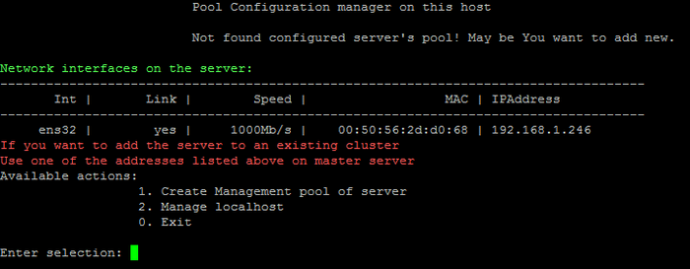
For the correct operation of the services of 1C-Bitrix products in VMBitrix version 7.x+, it is necessary to create a pool. 1. Create Management pool of server — Pool creation wizard will open all necessary ports in CentOS:
Step 3 Disable SELinux
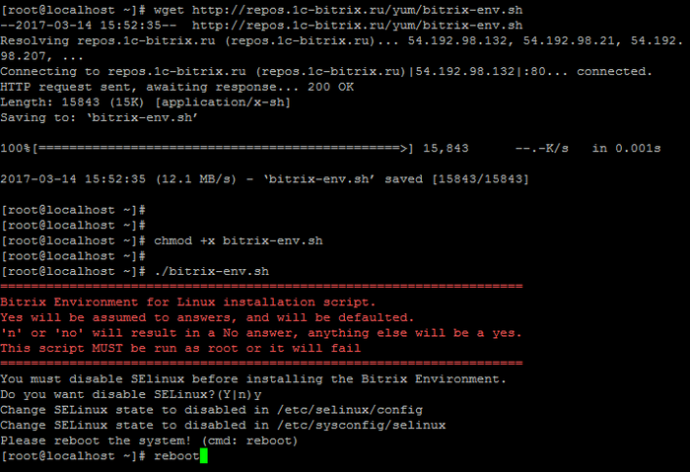
Next, you need to disable (if it is enabled on the server) and reboot the machine with the command . To do this, follow these steps:
If you want to simplify the installation process, you can use the script in the previous step, which will automatically perform all the necessary steps for you. In this case, do not forget to reboot the system after installation.
Step 5. Changing the bitrix user password
When you first log in to the server under the root account, you will be prompted to change the password for the bitrix user. Set a new password and keep it in a safe place.

Step 4. Continued installation of BitrixEnv
After rebooting the server, continue installing BitrixEnv with the command:
Step 2. Download and run the installation script
To install «1C-Bitrix: Web Environment» — Linux, you need to download the script and run it. To do this, enter the following commands:
wget https://repo.bitrix.info/yum/bitrix-env.sh && chmod +x bitrix-env.sh && ./bitrix-env.sh
Note: if the server does not have a file download utility, install it with yum install wget.
Step 7. Server ready
After all the settings, the server is ready for use.
To update the VMBitrix virtual environment, follow these steps
After restarting the server, the environment will be updated to the latest version.
